

In Excel, we often need to merge a string with an integer into a single cell for reporting or dashboard purposes. VBA provides two main operators for this: the ampersand (&) and the addition (+) operator, each with its own behavior and requirements.
➤ Open the VBA editor and insert a new module.
➤ Use either & or + operator to join a string and an integer. If using +, convert the number using the CStr function.
➤ Loop through your dataset and write the result to a target column.
In this article, we will show how to concatenate strings and integers in VBA using both the ampersand (&) and addition operator (+).

Concatenate String and Integer using Ampersand Operator in VBA
The ampersand (&) operator in VBA is the standard method for joining strings and integers into a single output. It can automatically handle mixed data types, making it safer and more reliable than the addition (+) operator. We use this method when we merge text-like names with numeric values, such as IDs, typically for generating readable summaries in Excel.
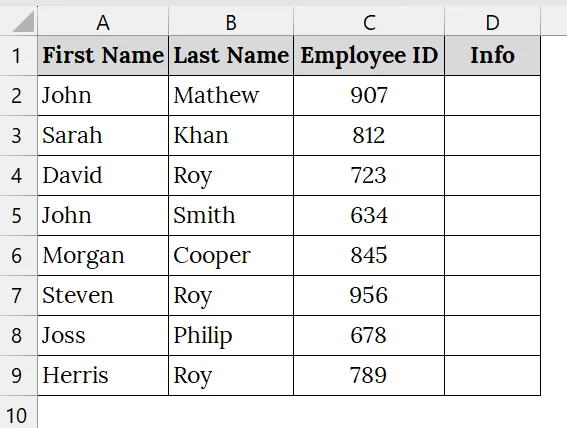
We have a dataset of employees of a company with their names and unique Employee IDs. We will concatenate the employee’s full name with their ID using the VBA ampersand (&) operator
Steps:
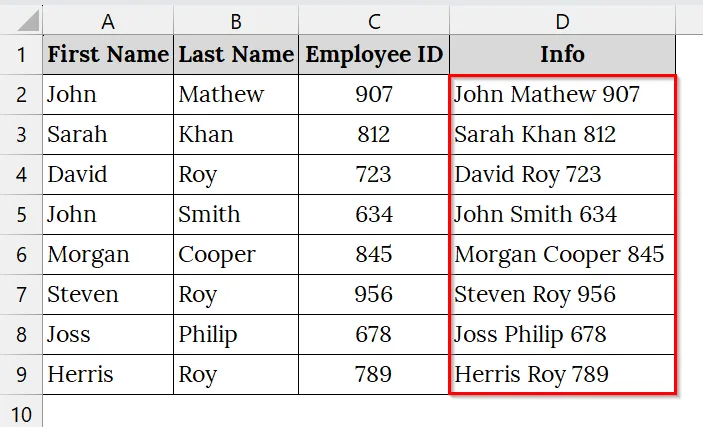
➤ Open your Excel sheet that contains your string and integer separately. For example, we have taken a dataset that contains First Name in Column A, Last Name in Column B, Employee ID in Column C, and Info in Column D (Blank).
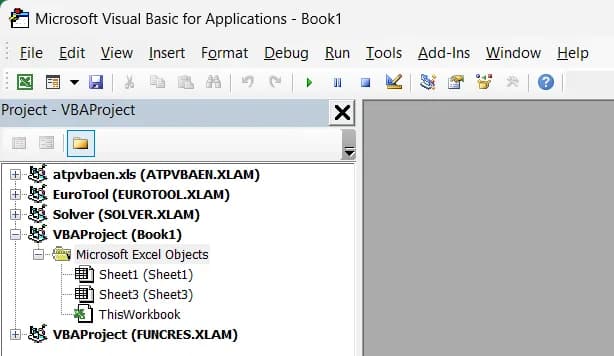
➤ Press Alt + F11 to open the Visual Basic for Applications (VBA) editor in Excel.
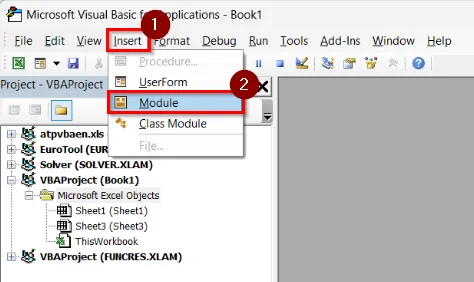
➤ Go to the menu bar → Insert → Module to create a new code module.
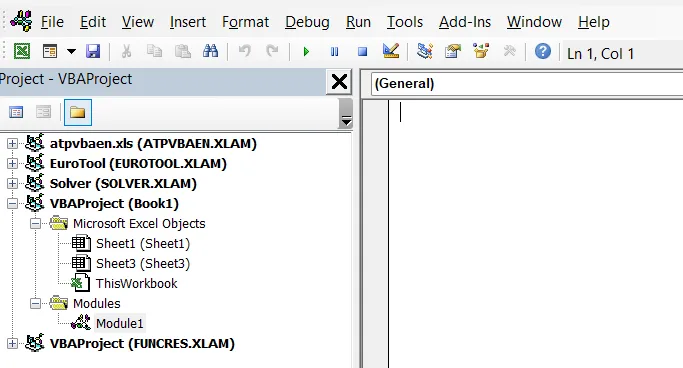
➤ A new code window will open where you will paste your VBA script.
➤ Copy and paste the following code into the module:
Sub Concatenate_StringInteger()
Dim i As Integer
Dim firstName As String
Dim lastName As String
Dim empID As Integer
Dim result As String
' Loop through rows 2 to 9
For i = 2 To 9
firstName = Cells(i, 1).Value       ' Column A: First Name
lastName = Cells(i, 2).Value        ' Column B: Last Name
empID = Cells(i, 3).Value           ' Column C: Employee ID
' Concatenate using Ampersand
result = firstName & " " & lastName & " " & empID
' Output to Column D: Info
Cells(i, 4).Value = result
Next i
End Sub
➤ Back in Excel, go to the Developer tab. If the Developer tab is not visible, click File.
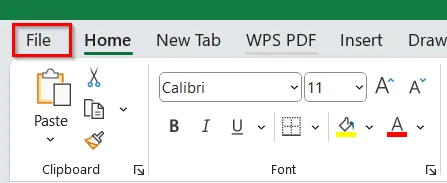
➤ Choose more → Options.
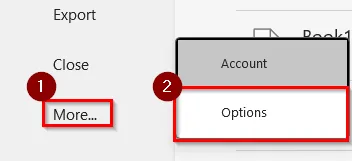
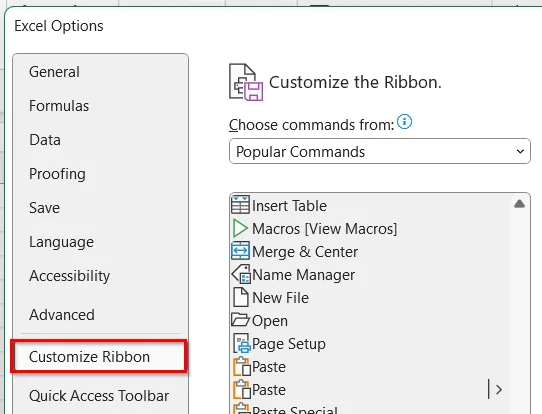
➤ Click on the Customize Ribbon.
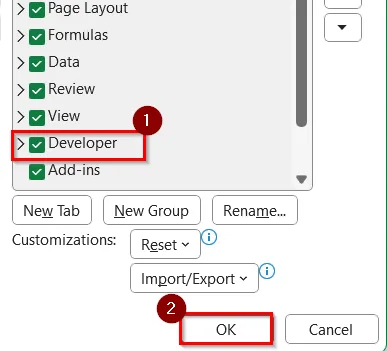
➤ Check Developer, and click OK.
➤ Now, go to the Developer tab.
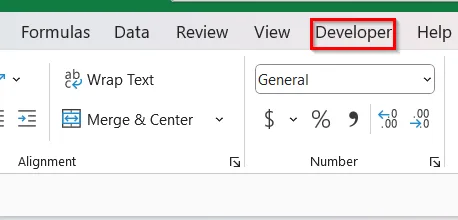
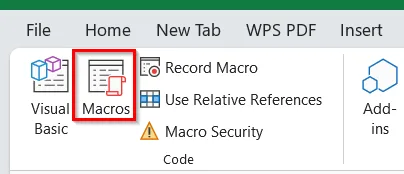
➤ Click on Macros.
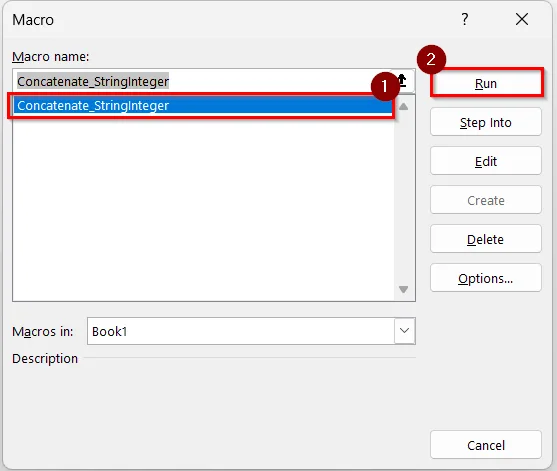
➤ Select Concatenate_StringInteger → Run
➤ Column D (Info) will now show values like: John Mathew 907, Sarah Khan 812, etc.
➥ You can extend the loop range if your dataset has more rows (e.g., change For i = 2 To 9 to For i = 2 To 100).
➥ This method uses Ampersand (&), which is preferred for string concatenation in VBA.
Concatenate String and Integer Using the Addition Operator in VBA
The addition operator (+) in VBA can be used to join strings and integers, but it requires converting the number to a string first. This method is good when we work with mixed data types like names and ID numbers, where direct concatenation may cause errors or unexpected results. Unlike the ampersand (&), which handles mixed types automatically, the + operator needs CStr to ensure compatibility.
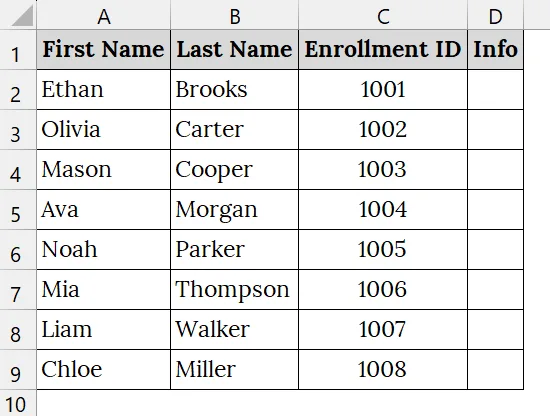
We have a dataset of students with their names and unique enrollment IDs. We will concatenate the student’s full name (string) with their ID (integer) using VBA and the Addition (+) operator.
➤ Open your Excel sheet that contains your string and integer separately. For example, we have taken a dataset that contains First Name in Column A, Last Name in Column B, Enrollment ID in Column C, and Info in Column D (Blank).
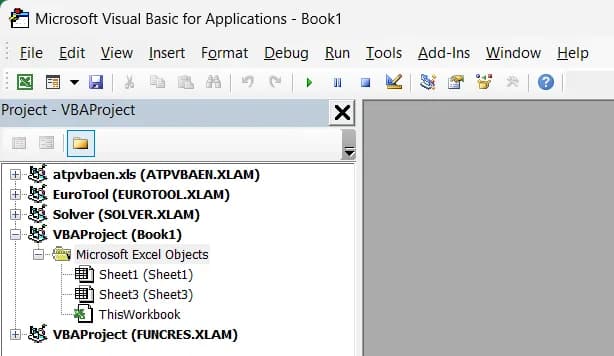
➤ Press Alt + F11 to open the Visual Basic for Applications (VBA) editor in Excel.
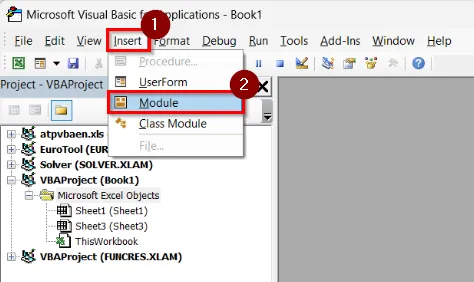
➤ Go to the menu bar → Insert → Module to create a new code module.
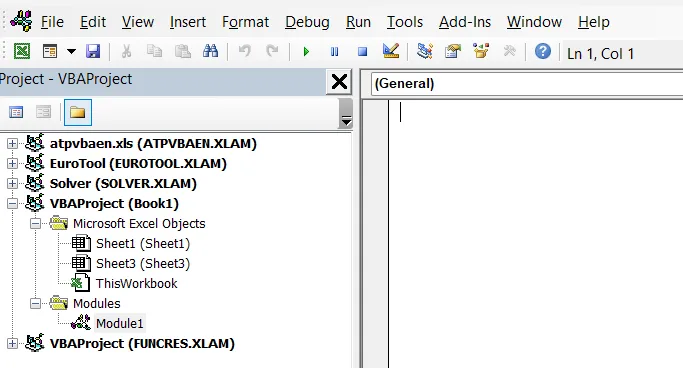
➤ A new code window will open where you will paste your VBA script.
➤ Copy and paste the following code into the module:
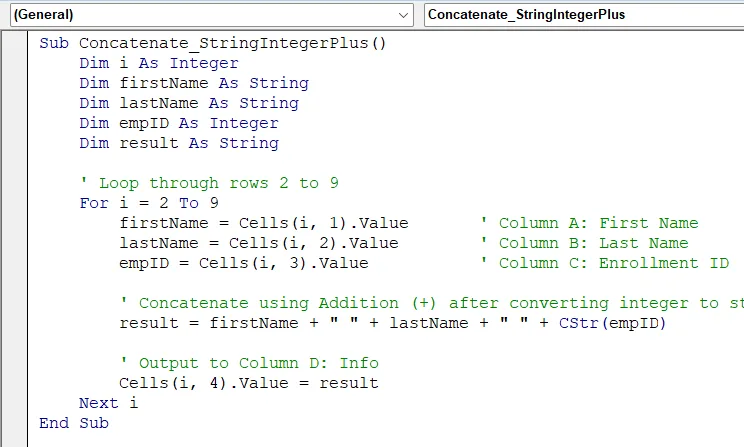
Sub Concatenate_StringIntegerPlus()
    Dim i As Integer
    Dim firstName As String
    Dim lastName As String
    Dim empID As Integer
    Dim result As String
    ' Loop through rows 2 to 9
    For i = 2 To 9
        firstName = Cells(i, 1).Value       ' Column A: First Name
        lastName = Cells(i, 2).Value        ' Column B: Last Name
        empID = Cells(i, 3).Value           ' Column C: Enrollment ID
        ' Concatenate using Addition (+) after converting integer to string
        result = firstName + " " + lastName + " " + CStr(empID)
        ' Output to Column D: Info
        Cells(i, 4).Value = result
    Next i
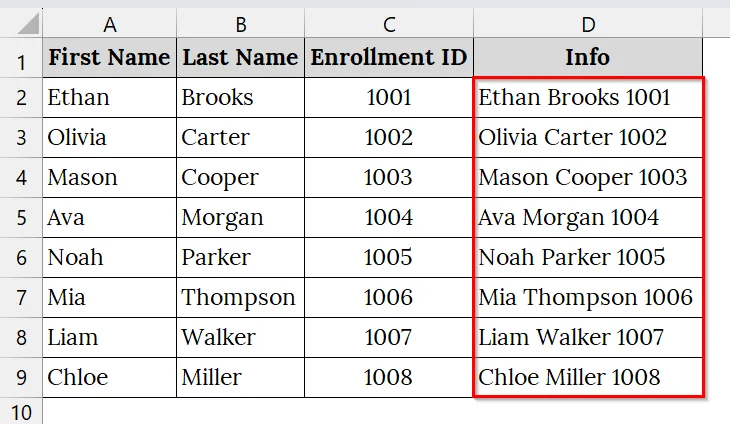
End Sub➥ The result is stored in Column D (Info) as a single string like "Ethan Brooks 1001".
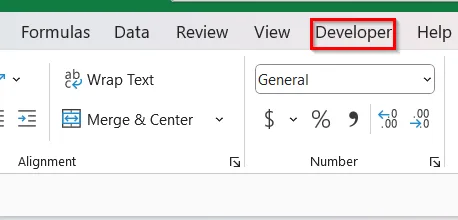
➤ Back in Excel, go to Developer.
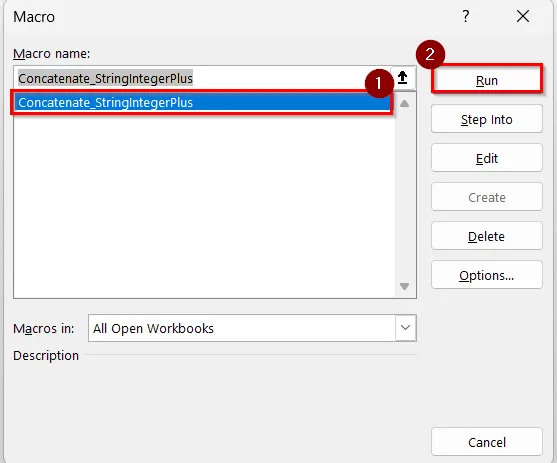
➤ Click on Macros.

➤ Select Concatenate_StringIntegerPlus → Run
➤ Column D (Info) will now show values like: Ethan Brooks 1001, Olivia Carter 1002, etc.
➥ Always use the CStr function to convert numeric values before using + for concatenation.
➥ Make sure there are no blank cells in First Name, Last Name, or Enrollment ID columns.
Downloadable Resources
Get our practice workbook or necessary files that we have worked with to prepare this article.
Concatenate String and Integer with VBA.zip
Practice Workbook · Excel (.xlsx)
Frequently Asked Questions
Which operator is safer to use: & or +?
The ampersand (&) is safer because it automatically handles mixed data types.
Why use CStr with the + operator?
Because + expects both operands to be strings, CStr() ensures the integer is treated as text.
Can I concatenate multiple fields in one line?
Yes, you can combine several strings and numbers using either operator, separated by spaces or symbols.
Concluding Words
Concatenating strings and integers in VBA is a simple yet essential method for generating readable outputs. Using the ampersand operator or the addition operator with CStr allows us to merge text and numbers efficiently within Excel macros. Also, you can download the text files and datasets that we have used in this article to practice on your own.