

Conditional formatting in Excel is an easy way to highlight important information automatically. When we apply conditional formatting to dates that are older than today, it highlights all those cells that contain dates that have already passed, based on the current date. A common use case is identifying overdue tasks, deadlines, or borrowed items. This saves time, reduces errors, and helps keep track of due dates efficiently.
➤ Select the column or range of cells containing your dates.
➤ Go to Home > Conditional Formatting > New Rule.
➤ Choose Use a formula to determine which cells to format, then enter =D2<TODAY() in the formula box below and set your desired formatting colour (e.g., yellowish).
In this article, we will explain how to format dates that are older than today in Excel by using the Today function and VBA code.
Using the Conditional TODAY Function to Format Dates Older Than Today
Each time we enter Excel, the TODAY function captures today’s date and formats the cells that contain all the dates older than today's date. This method highlights past dates in Excel automatically. It is useful for tracking deadlines, overdue tasks, or expired items in a dataset.
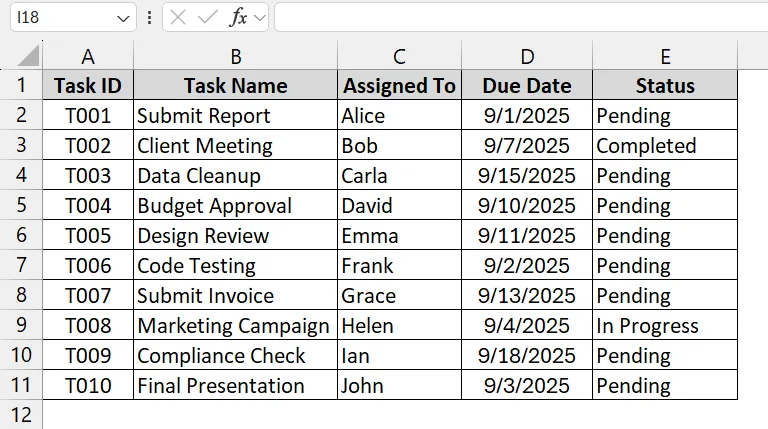
We have a dataset where we want to identify dates that have already passed today. That means if today is September 11, 2025, then we want all other dates older than September 11, 2025, to be highlighted.
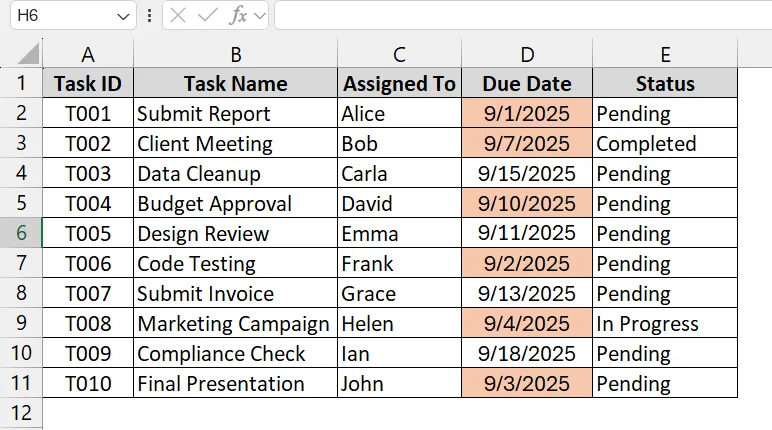
➤ In our dataset, we have Task ID in Column A, Task Name in Column B, Assigned To in Column C, Due Date in Column D, and Status in Column E.
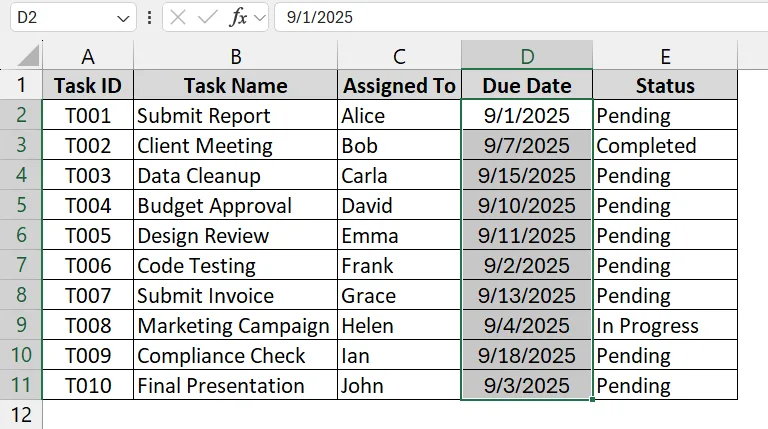
➤ Click and drag the cells that contain dates you want to check. For example, if your due dates are in Column D (D2:D11), select this entire range.
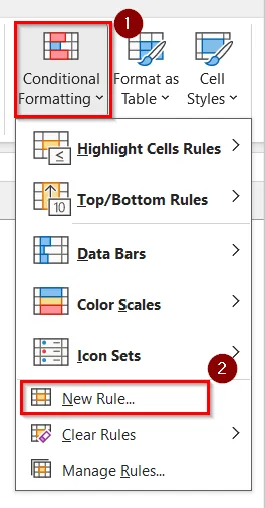
➤ Click on Conditional Formatting on the Excel ribbon and then choose New Rule.
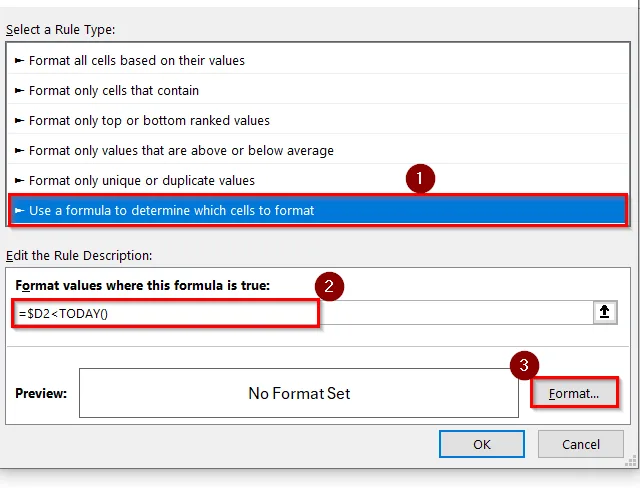
➤ In the New Formatting Rule window, select “Use a formula to determine which cells to format.”
➤ Enter the following Formula in the formula box:
=$D2<TODAY()➤ Then click the Format button to set colours.
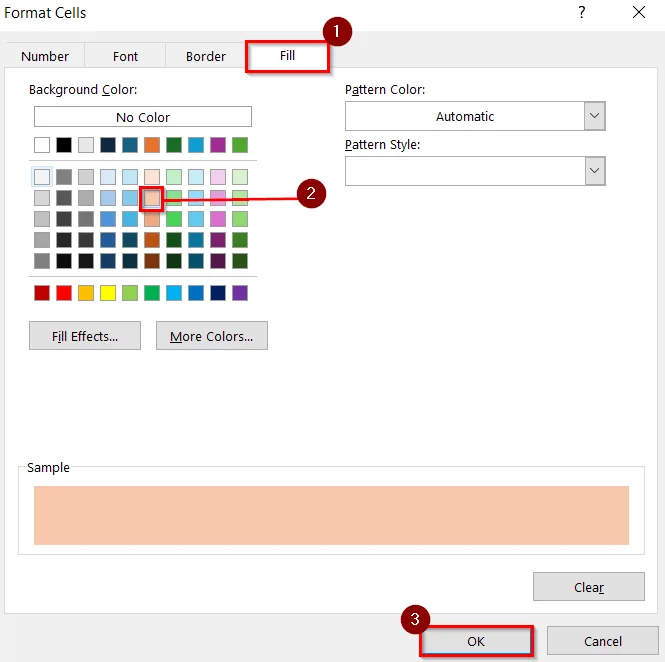
➤ In the Format Cells dialog, click on Fill and choose any colour. Click OK to close the Format dialog
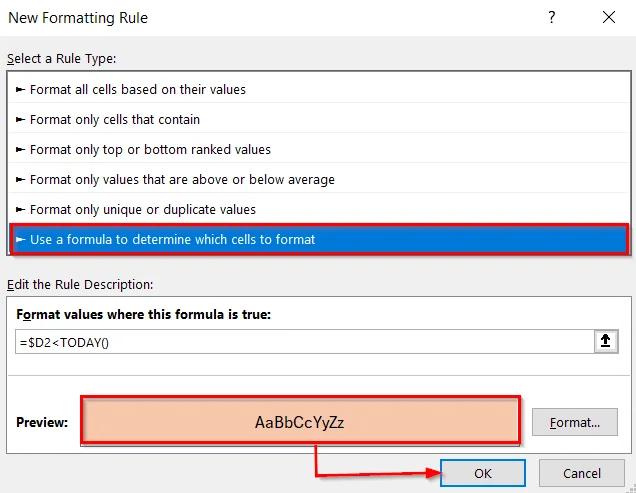
➤ Click OK again in the New Formatting Rule window.
➤ The conditional formatting is applied to dates that are older than today (September 11, 2025).
Applying VBA Macro to Apply Conditional Formatting for Dates Older Than Today
This method uses a VBA macro to automatically highlight cells with dates earlier than today. It is useful if you want Excel to check dates dynamically every time you open the workbook or run the script, particularly for larger datasets (like due dates, deadlines, or expiry dates).
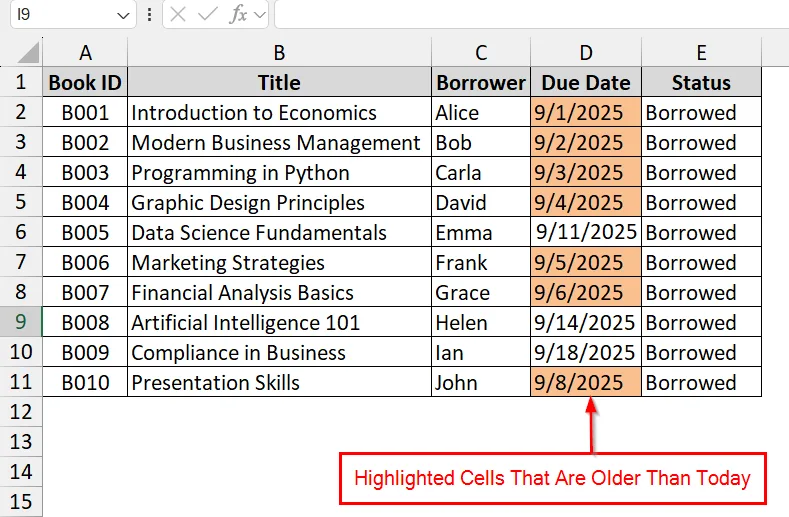
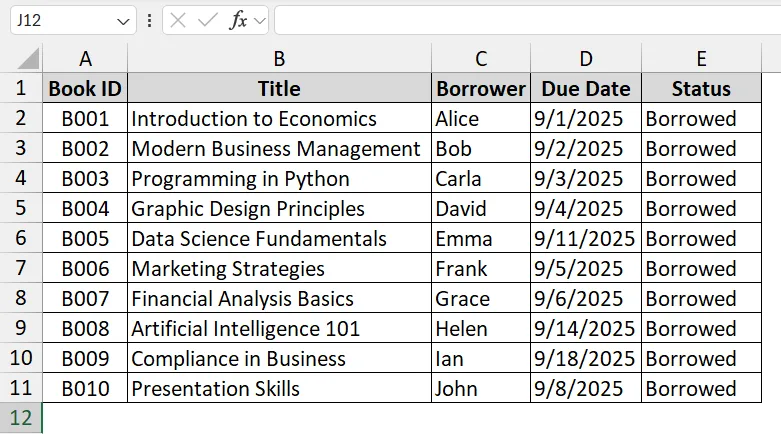
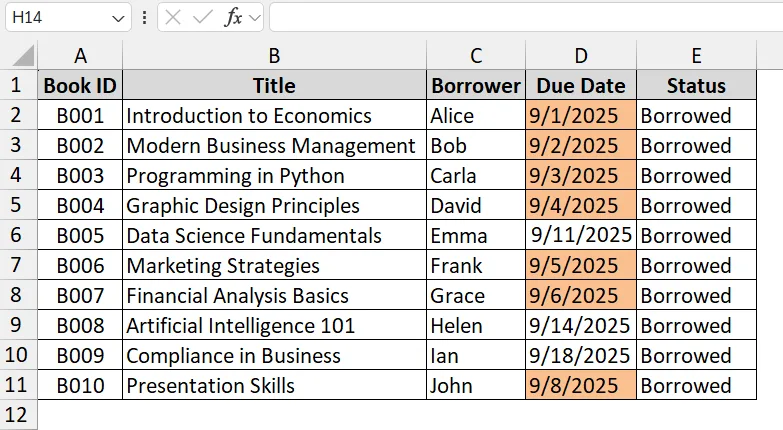
We have a dataset that shows library book borrowing records. We will use a VBA macro so that all due dates earlier than today (September 11, 2025) are automatically highlighted. This will help librarians to instantly see which books are overdue.
➤ We have the Book ID in Column A, Title in Column B, Borrower in Column C, Due Date in Column D, and Status in Column E. We want to apply a Conditional format in Column D.
➤ Press Alt + F11 to open the VBA Editor in Excel.
➤ In the VBA editor, click Insert > Module.
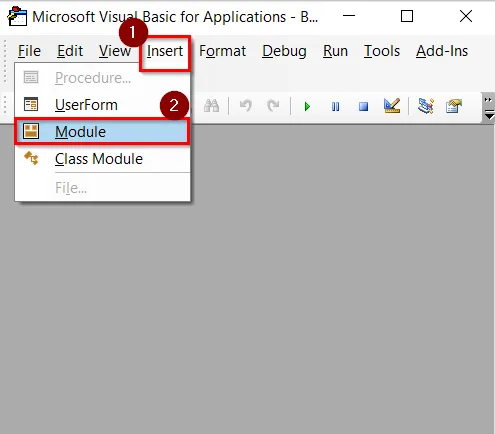
➤ After clicking on Module A, a blank code window will open. Paste the following VBA code in the module window.
Sub ApplyDueDateFormatting()
    Dim ws As Worksheet
    Dim lastRow As Long
    Dim rng As Range
    'Set the worksheet (change "Sheet1" if needed)
    Set ws = ThisWorkbook.Sheets("Sheet1")
    'Find the last row in column D
    lastRow = ws.Cells(ws.Rows.Count, "D").End(xlUp).Row
    'Set the range of due dates (D2:DlastRow)
    Set rng = ws.Range("D2:D" & lastRow)
    'Clear existing conditional formats
    rng.FormatConditions.Delete
    'Overdue dates (before today) -> don't use gradient fill, use one color
    rng.FormatConditions.Add Type:=xlExpression, Formula1:="=D2<TODAY()"
    rng.FormatConditions(rng.FormatConditions.Count).Interior.Color = RGB(255, 0, 0)
    MsgBox "Conditional formatting applied to Due Dates.", vbInformation
End Sub
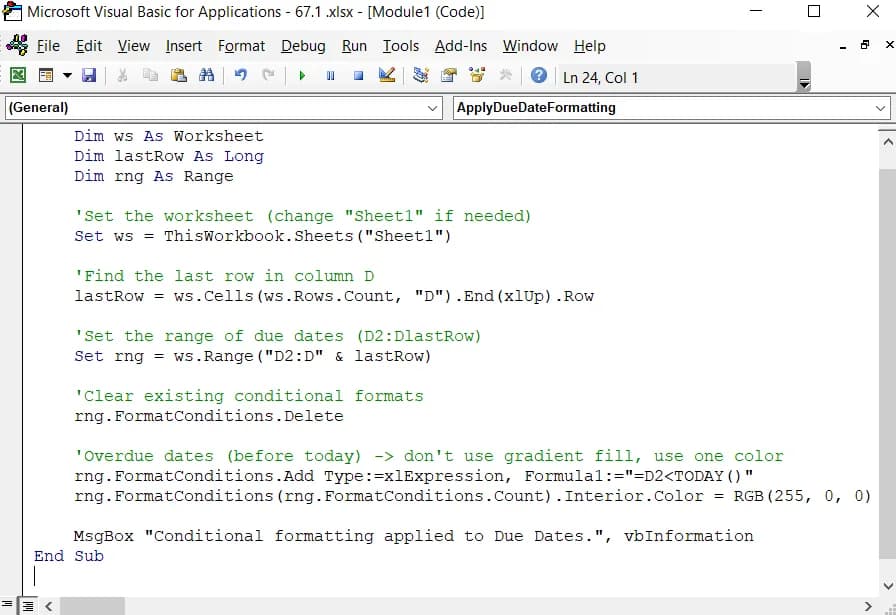
➤ Close the VBA editor.
➤ Press Alt + F8, select ApplyDueDateFormatting, and click Run.
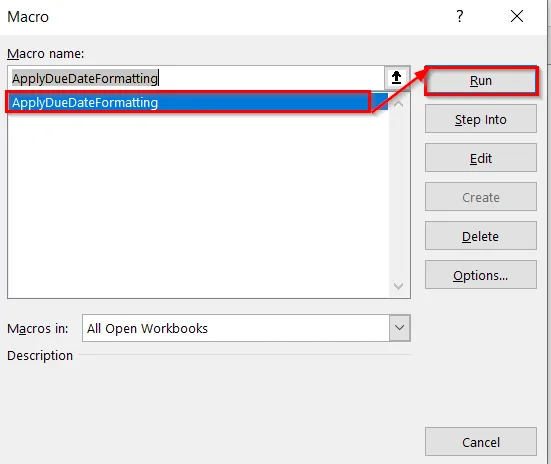
➤ The VBA macro will run immediately and apply the conditional formation to dates that are older than today (September 11, 2025).
Downloadable Resources
Get our practice workbook or necessary files that we have worked with to prepare this article.
Conditional Formatting for Dates Older Than Today.zip
Practice Workbook · Excel (.xlsx)
Frequently Asked Questions
How to use conditional formatting for a date 30 days earlier than today?
Use this formula in conditional formatting:
=A1<TODAY()-30
How do you do conditional formatting in Excel for past due dates?
Select your date range and use the rule:
=A1<TODAY()
How do you format an old date in Excel?
Apply a rule with =A1<TODAY() to highlight all past dates automatically.
Concluding Words
Highlighting Excel with conditional formatting for dates that are older than today makes managing deadlines easier. We have described 2 methods that work best with all Excel versions. You can download the dataset we have used in this article and practice on your own. If you face any issues, leave a comment below.