

When you are managing multiple Excel files, sometimes you may need to copy one or more worksheets to another workbook. Obviously, doing this manually can be time-consuming and repetitive. That is especially true when working with large data or multiple worksheets. However, Excel VBA helps to simplify this task by automating the copying worksheet process.
In this article, we will walk you through five different practical methods to copy a worksheet to another workbook with Excel VBA. It will include copying to a new file, an existing workbook (open or closed), copying multiple sheets, and copying and saving it as a new workbook.
➤ Right click on your sheet name >> choose Insert >> Module.
➤ Insert the below VBA macro into the VBA editor.
Sub CopyToNewWorkbook()
    Sheets("Sheet1").Copy
End Sub
➤ The VBA will copy the selected sheet and save it to a new Excel workbook.
Copy Worksheet to a New Workbook
The method copies a specific worksheet from your current workbook to a totally new Excel workbook. You can use the method when you want to split one Excel worksheet into a separate file. The new workbook will only contain a specific one copied worksheet.
Here we have a sample workbook with 3 worksheets: Sheet1, Sheet2, and Sheet3. Each worksheet contains the same dataset. Now we are going to copy a single worksheet (Sheet1) to another Excel workbook with Excel VBA.

➤ Open your Excel file from which you want to copy a worksheet to another file.
➤ Press Alt + F11 to open the VBA Editor.
➤ In the editor, right-click on your sheet name >> Insert >> Module.
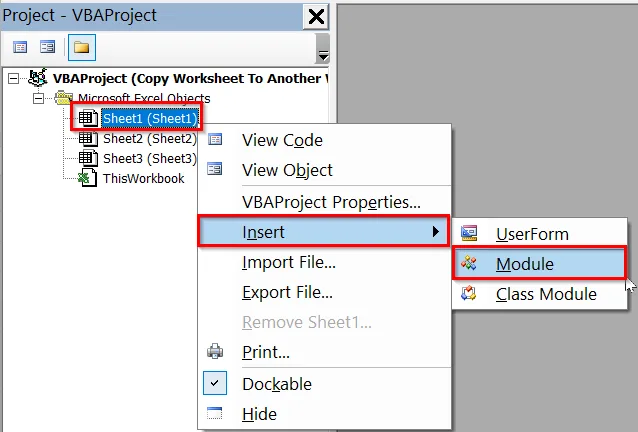
➤ Insert the below VBA code into the new module, copying and pasting it. Just replace "Sheet1" with the name of your sheet.
Sub CopyToNewWorkbook()
Sheets("Sheet1").Copy
End Sub
➤ Close the VBA editor.
➤ Press Alt + F8 >> Choose the Macro name (CopyToNewWorkbook) >> Click Run
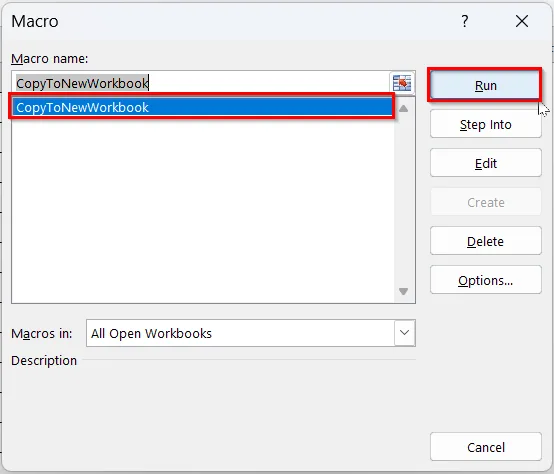
➤ Excel will create a new workbook. It will contain only the copied worksheet from your original file.

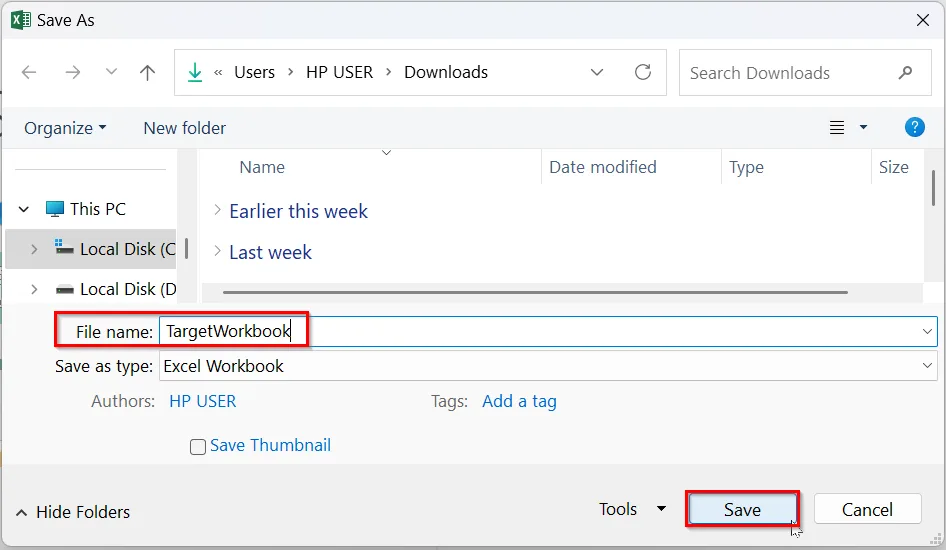
➤ The new workbook will be unsaved. So, you can choose to save or edit it manually. We have saved the new file as TargetWorkbook.
Copy Worksheet to Another Workbook That Is Open
The VBA code copies the specific worksheet from your current workbook into an already existing Excel workbook. It is a useful method when you are collecting data from multiple sheets into one Excel file.
➤ Open both the Excel workbooks: the source workbook from where you want to copy a specific sheet, and the target workbook where you want to copy it.
➤ Press Alt + F11 to open the VBA Editor.
➤ Right-click on VBAProject (YourWorkbook) >> Insert >> Module.
➤ Copy and paste the following VBA code.
Sub CopyToExistingWorkbook()
Dim targetWB As Workbook
' Set target workbook by name
Set targetWB = Workbooks("TargetWorkbook.xlsx")
' Copy the sheet after the last sheet in the target workbook
ThisWorkbook.Sheets("Sheet1").Copy After:=targetWB.Sheets(targetWB.Sheets.Count)
End Sub➥ The workbook name must match exactly, including .xlsx.
➥ Your target workbook must be kept open.
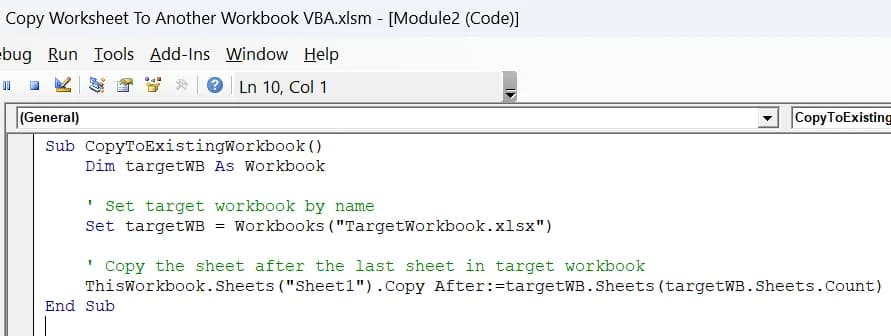
➤ Close the VBA editor.
➤ Press Alt + F8 >> Choose the Macro name (CopyToExistingWorkbook) >> Click Run

➤ Your selected sheet will be copied to your target workbook.

Copy Worksheet to Another Workbook Without Opening
Unlike the previous method, where you need to keep the target workbook open, this method copies a worksheet to another target workbook without opening the target workbook. It is a useful method in saving time when working with many files. The VBA code copies the sheet and saves changes to the target workbook automatically.
➤ Open the VBA editor by pressing Alt + F11
➤ Insert a new module.
➤ Insert the following VBA code copy pasting it.
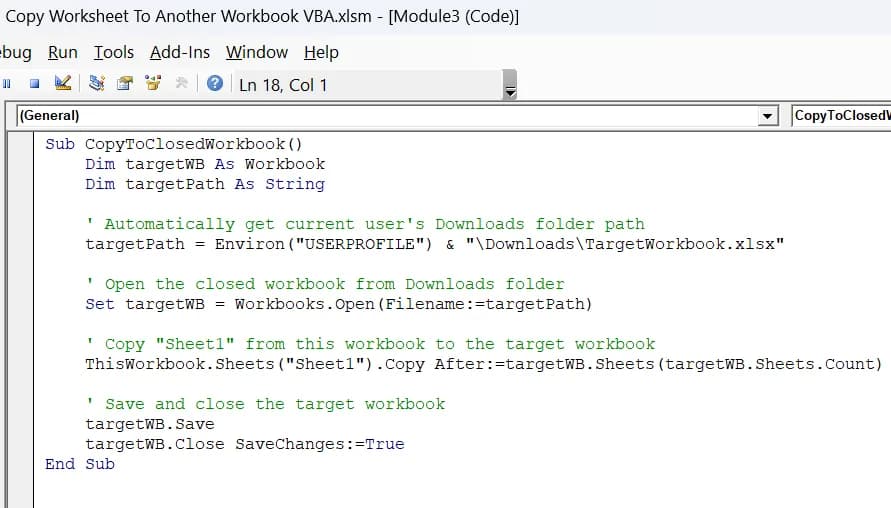
Sub CopyToClosedWorkbook()
Dim targetWB As Workbook
Dim targetPath As String
' Automatically get the current user's Downloads folder path
targetPath = Environ("USERPROFILE") & "\Downloads\TargetWorkbook.xlsx"
' Open the closed workbook from the Downloads folder
Set targetWB = Workbooks.Open(Filename:=targetPath)
' Copy "Sheet1" from this workbook to the target workbook
ThisWorkbook.Sheets("Sheet1").Copy After:=targetWB.Sheets(targetWB.Sheets.Count)
' Save and close the target workbook
targetWB.Save
targetWB.Close SaveChanges:=True
End Sub➥ Update targetPath (targetPath = Environ("USERPROFILE") & "\Downloads\TargetWorkbook.xlsx") to your actual target workbook name and the folder where it is located.
➤ Press Alt + F8 >> Choose the CopyToClosedWorkbook macro >> Click Run.
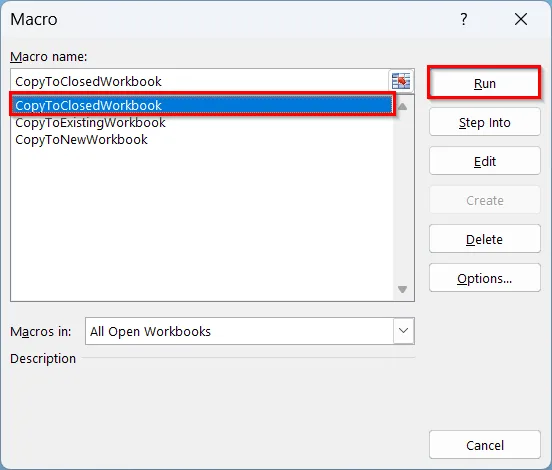
➤ The code opens the file in the background, copies the sheet, and saves it.

Copy Multiple Worksheets to Another Workbook
In case you want to copy more than one worksheet to another workbook at once, the method can help you out. It can be useful when you want to back up or share selected sheets together and another workbook.
➤ Open the VBA editor and insert a new module.
➤ Insert the VBA code.
➤ If you want to copy multiple worksheets but not all, copy and paste the below VBA code.
Sub CopyMultipleSheetsToExistingWorkbook()
Dim targetWB As Workbook
Dim sheetsToCopy As Variant
' List sheets you want to copy here
sheetsToCopy = Array("Sheet1", "Sheet2", "Sheet3")
' Set your target workbook name (must be open)
Set targetWB = Workbooks("TargetWorkbook.xlsx")
' Copy the sheets to the target workbook, after the last sheet
ThisWorkbook.Sheets(sheetsToCopy).Copy After:=targetWB.Sheets(targetWB.Sheets.Count)
End Sub
➤ Change Sheets to copy [sheetsToCopy = Array("Sheet1", "Sheet2", "Sheet3")] to the sheet name you want to copy.

➤ In case you want to copy all the worksheets existing in the source Excel file, insert the below VBA code.
Sub CopyAllSheetsToExistingWorkbook()
Dim targetWB As Workbook
' Set your target workbook name (must be open)
Set targetWB = Workbooks("TargetWorkbook.xlsx")
' Copy all sheets from this workbook to the target workbook
ThisWorkbook.Sheets.Copy After:=targetWB.Sheets(targetWB.Sheets.Count)
End Sub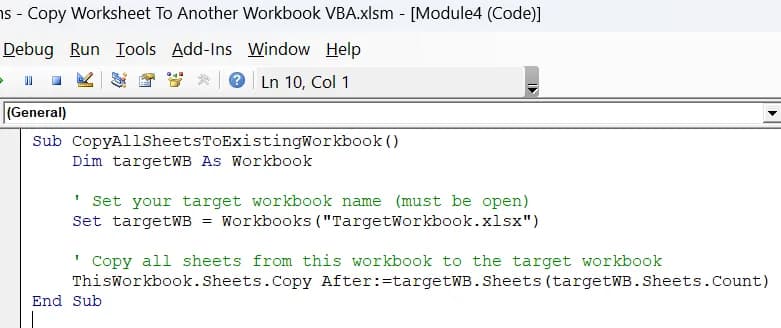
➤ Run the VBA code by choosing the macro name.

➤ Your selected sheets will be copied to your target workbook.
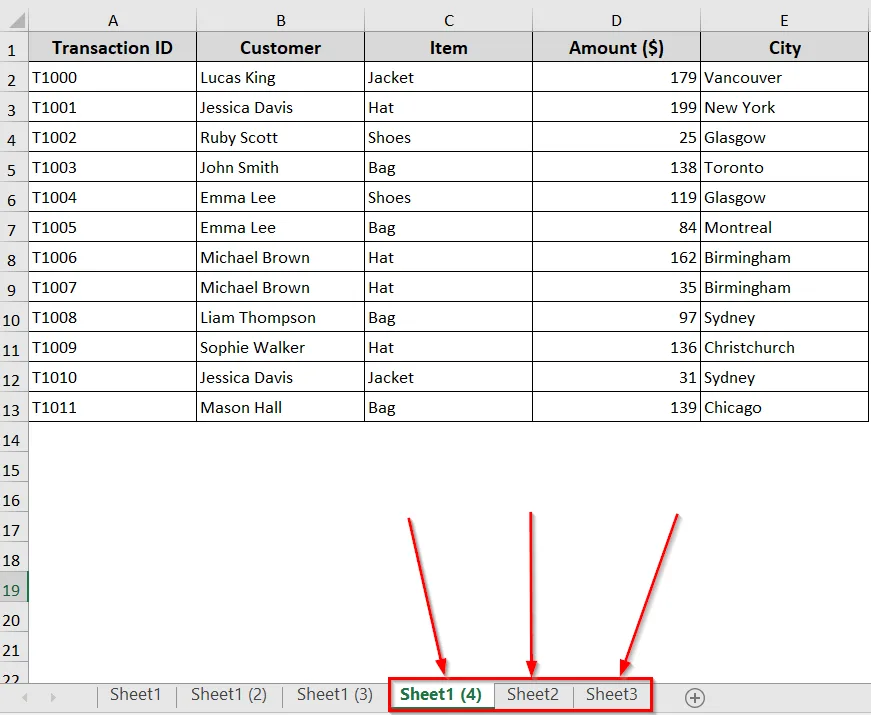
Copy and Save as a New Workbook
This method lets you copy a worksheet from your workbook and save it directly as a new Excel workbook file. Through this method, you will not need to save the newly created workbook manually. The code will copy your specific sheet from your source workbook and save it automatically to a new workbook.
➤ Open your Excel workbook.
➤ Open the VBA editor and insert a new module.
➤ Insert the below VBA code into the module. You can just copy and paste it.
Sub CopyAndSaveAsNewWorkbook()
Dim ws As Worksheet
Dim newWb As Workbook
Dim savePath As String
' Set the worksheet you want to copy
Set ws = ThisWorkbook.Sheets("Sheet1") ' Change "Sheet1" if needed
' Copy the worksheet to a new workbook
ws.Copy
Set newWb = ActiveWorkbook
' Set the path where you want to save the new file
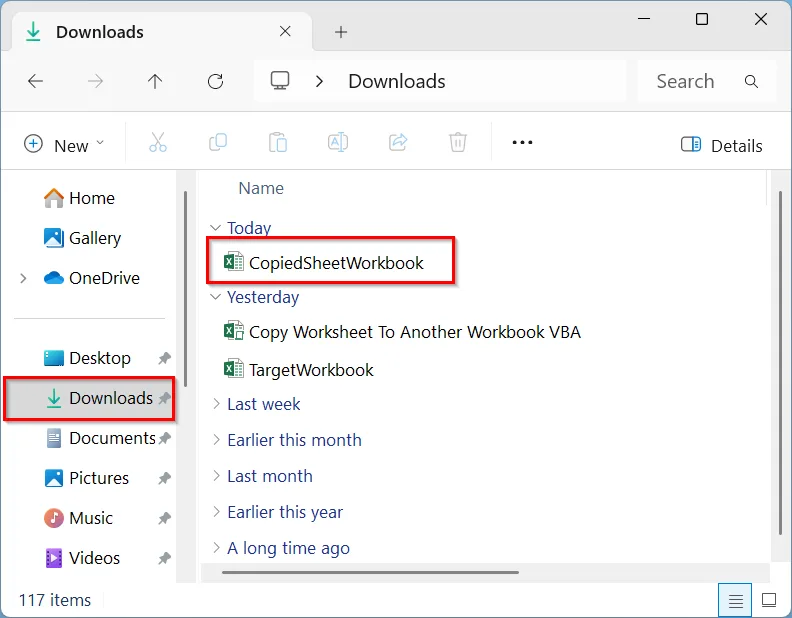
savePath = Environ("USERPROFILE") & "\Downloads\CopiedSheetWorkbook.xlsx"
' Save the new workbook
newWb.SaveAs Filename:=savePath
newWb.Close
MsgBox "Sheet copied and saved as new workbook successfully!"
End Sub➥ You can change the filename and path (CopiedSheetWorkbook.xlsx) to anything you like.
➥ The code saves the file in your Downloads folder. You can update the path as needed.

➤ Run the VBA code.
➤ It will copy your sheet to another new workbook and save it automatically.
Downloadable Resources
Get our practice workbook or necessary files that we have worked with to prepare this article.
Copy Worksheet to Another Workbook with VBA.zip
Practice Workbook · Excel (.xlsx)
Frequently Asked Questions
How to copy data from one Excel sheet to another using VBA?
➤ Insert the below VBA code into the VBA editor:
Sub CopyData()
    Sheets("Sheet1").Range("A1:D10").Copy Destination:=Sheets("Sheet2").Range("A1")
End Sub
➤ Run the VBA code.
➤ The VBA will copy the data from range A1:D10 in "Sheet1" to “Sheet2” within the same range.
➤ Change the sheet name and range as needed for your worksheet.
How to get data from another workbook in VBA?
➤ Insert the following VBA code into the VBA editor to get data from another workbook.
Sub GetDataFromWorkbook()
    Dim sourceWB As Workbook
    Dim sourcePath As String
    sourcePath = "C:\Users\YourName\Downloads\SourceWorkbook.xlsx"
    Set sourceWB = Workbooks.Open(sourcePath)
    sourceWB.Sheets("Sheet1").Range("A1:D10").Copy ThisWorkbook.Sheets("Sheet1").Range("A1")
    sourceWB.Close False
End Sub
➤ Update the file path and the sheet name according to yours.
➤ Run the VBA code.
➤ The code will open your source workbook, copy your specified sheet, and paste the data to your current sheet.
How to automatically update one Excel worksheet from another sheet in VBA?
➤ Use the below VBA code to update one Excel worksheet from another sheet.
Sub AutoUpdateSheet()
    Dim sourceWS As Worksheet
    Dim targetWS As Worksheet
    Set sourceWS = ThisWorkbook.Sheets("Sheet1")   ' Source sheet
    Set targetWS = ThisWorkbook.Sheets("Sheet2")   ' Target sheet
    sourceWS.Range("A1:D20").Copy Destination:=targetWS.Range("A1")
End Sub
➤ Run the code.
➤ The code will copy from Sheet1 to Sheet2 every time you run the code.
Wrapping Up
In today’s guide, we have learnt five different ways to copy a worksheet to another workbook with Excel VBA. These VBA codes effectively help you automate the process of copying sheets. It can be a new file, an existing one, or multiple sheets at once. Feel free to download the sample workbook and the target workbook and try out the VBA codes yourself. Let us know how the VBA codes simplified your tasks.