Excel Pro Tips
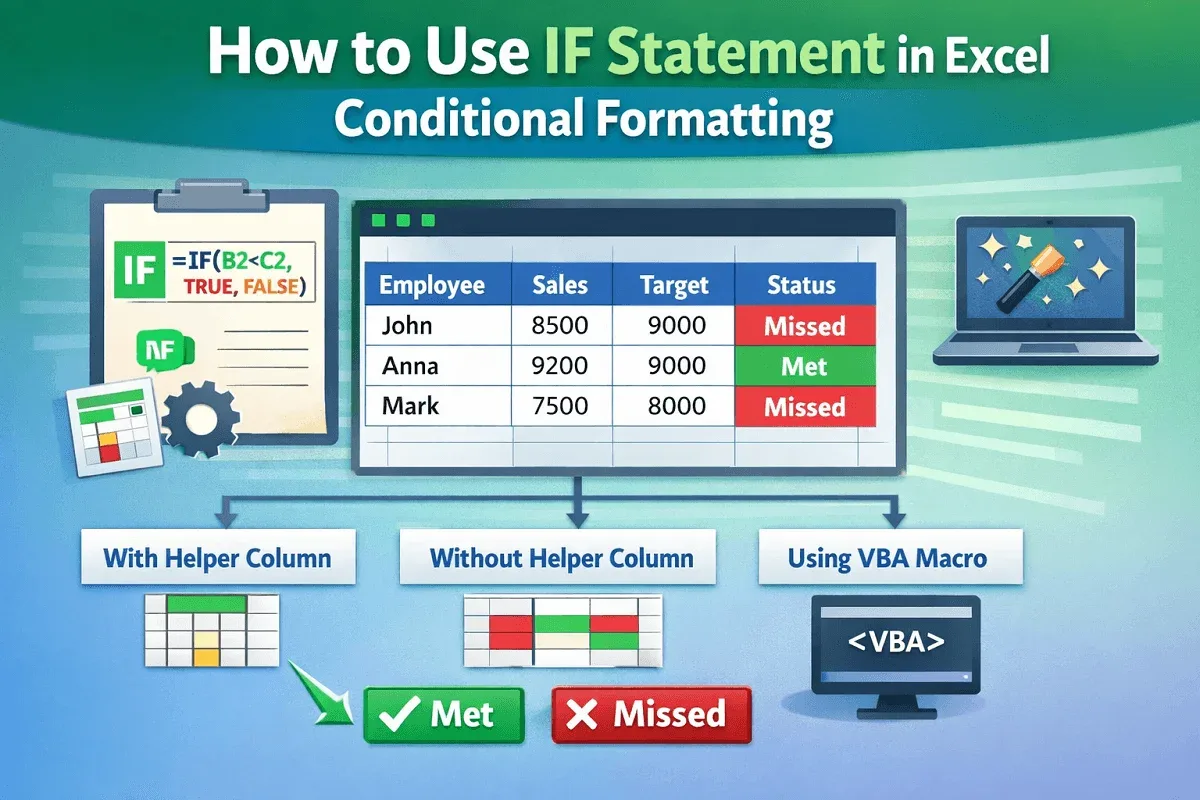
How to Use IF Statement in Excel Conditional Formatting
Learn how to use the IF statement in Excel conditional formatting with helper columns, direct formulas, and VBA to highlight results.
Read article

1285 articles
Learn how to use the IF statement in Excel conditional formatting with helper columns, direct formulas, and VBA to highlight results.

Learn how to add text after numbers in Excel using custom formats, conditional suffixes, scaling, symbols, and VBA alternatives.
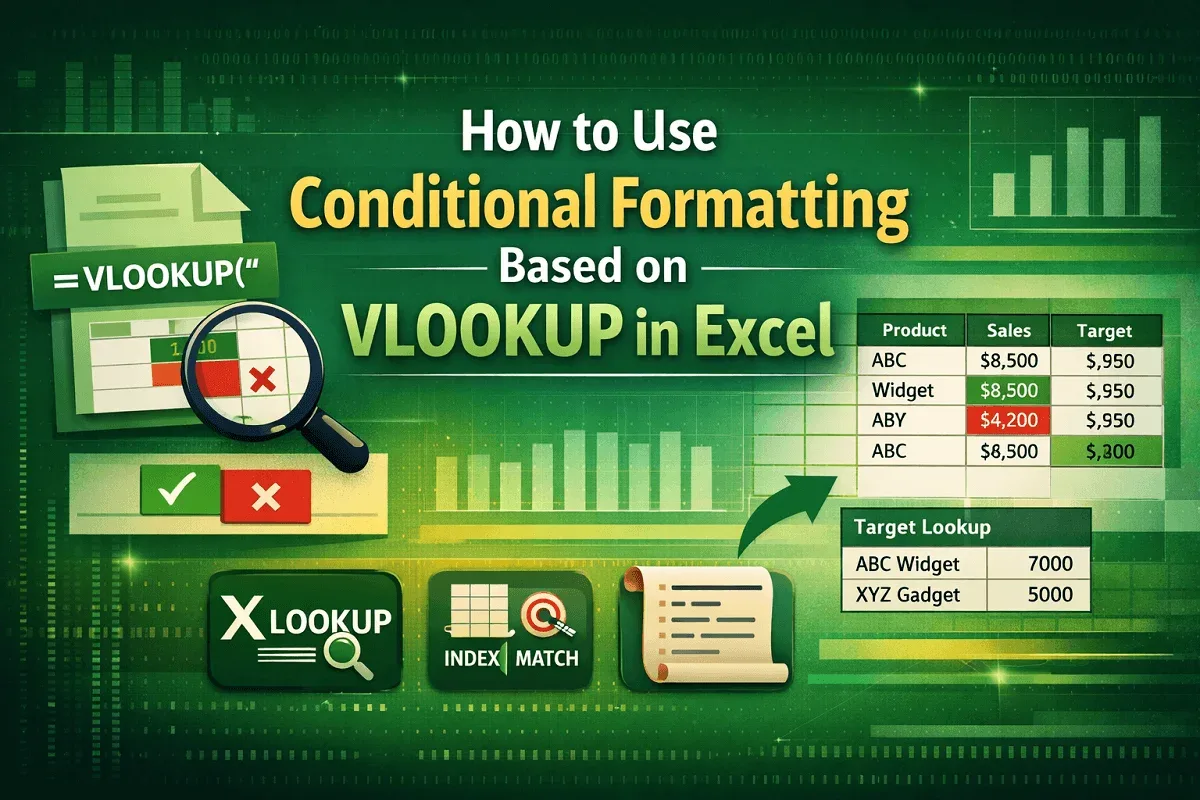
Learn how to use conditional formatting with VLOOKUP in Excel to highlight values, compare targets, and explore XLOOKUP, MATCH and VBA.
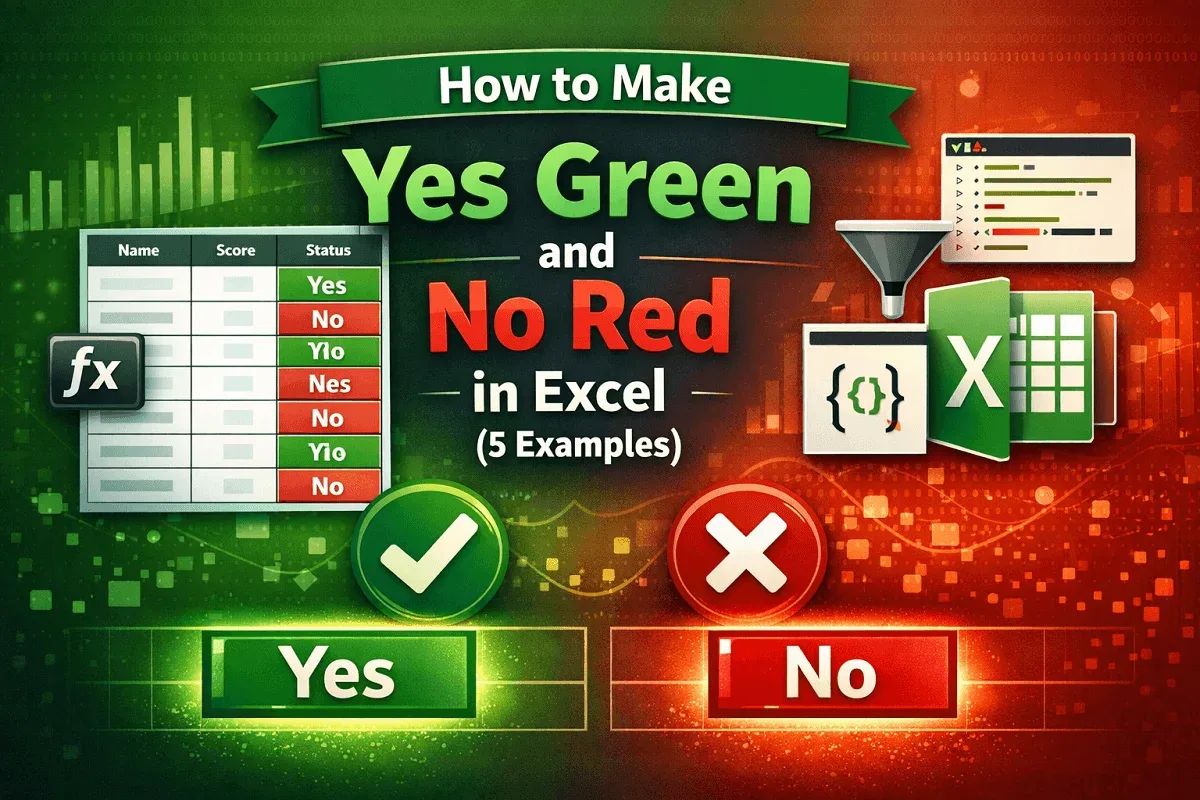
Make Yes green and No red in Excel using conditional formatting, filters, VBA Editor, or Office Scripts for highlights easily.
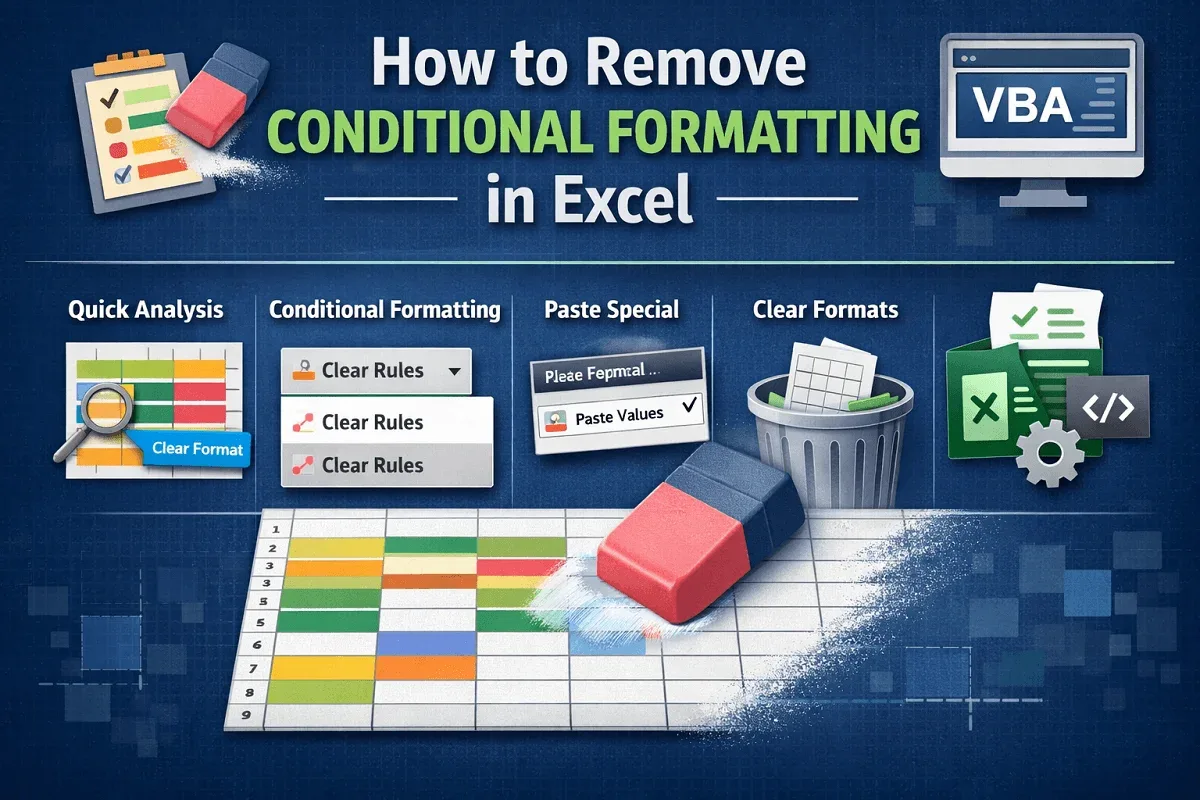
Learn how to remove conditional formatting in Excel using Clear Rules, Quick Analysis, Paste Special, Clear Format, or VBA automation.
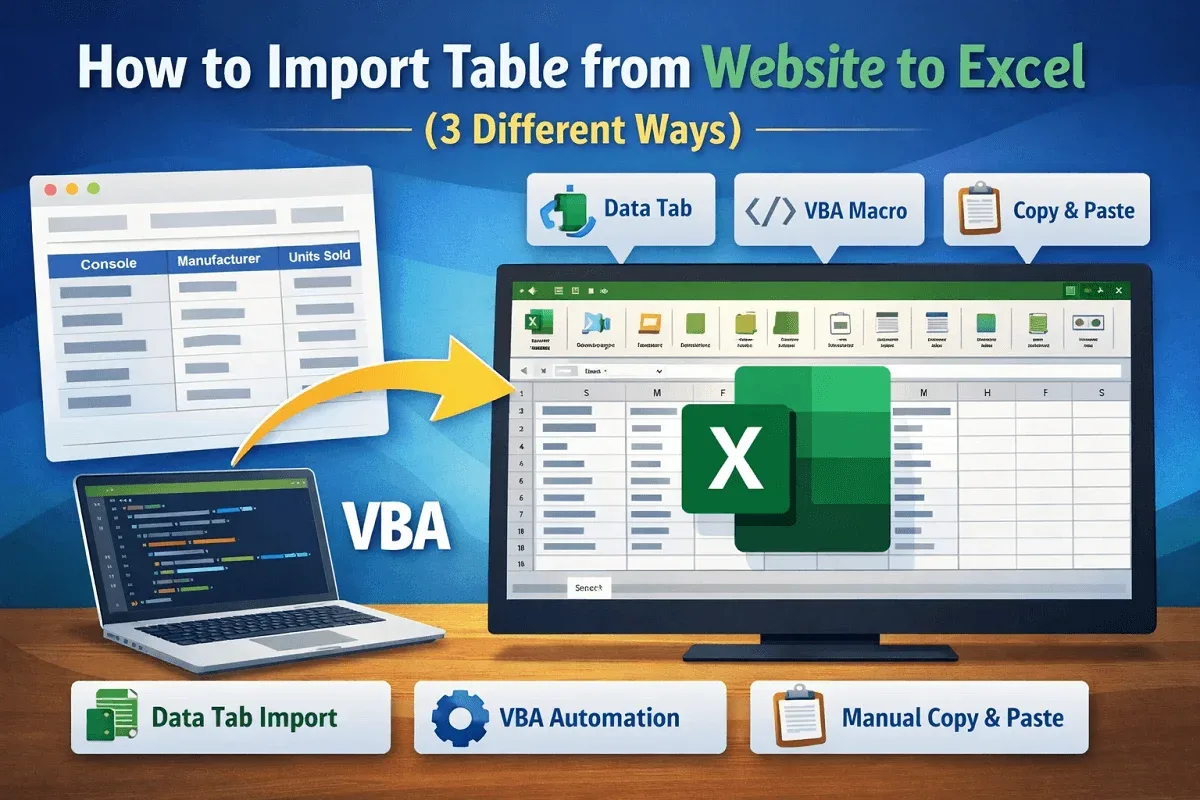
Learn how to import tables from websites into Excel using the Data tab, VBA automation, or manual copy paste methods easily.

Learn how to create QR codes in Excel using the IMAGE function, Office add-ins, or automated VBA to quickly generate scannable codes.
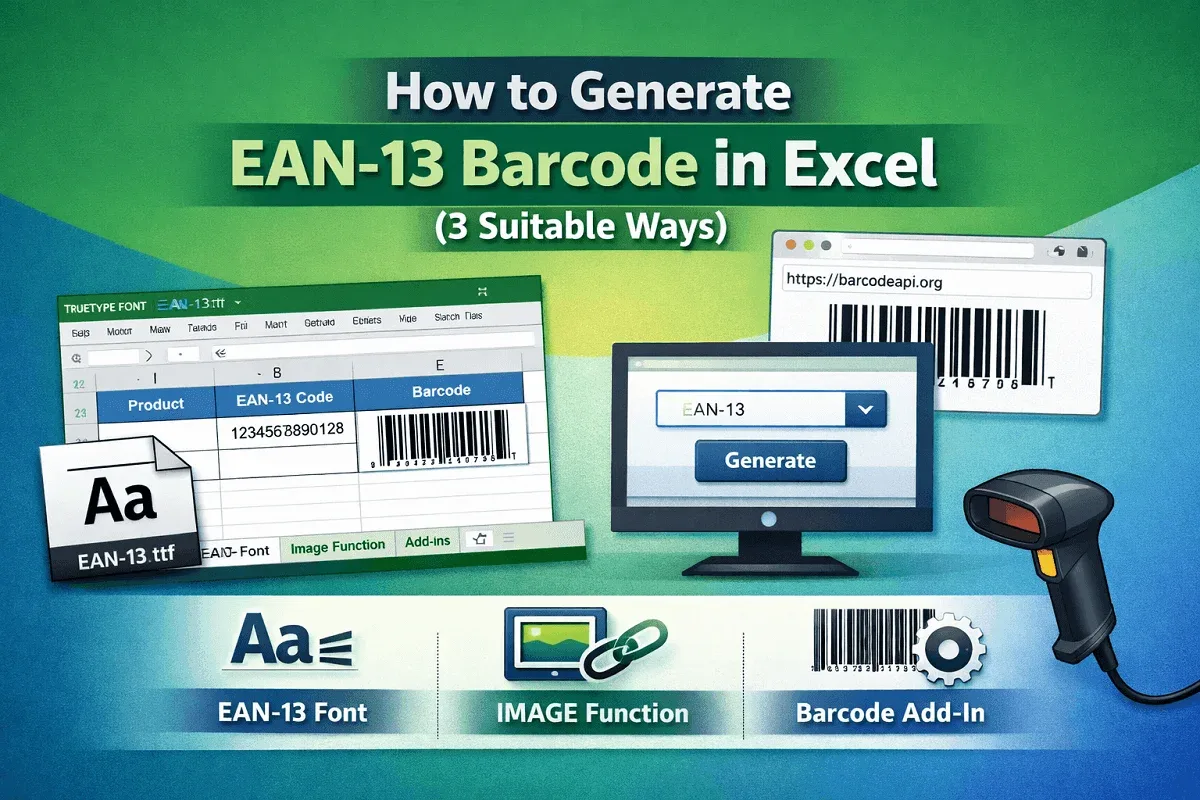
Learn how to generate an EAN-13 barcode in Excel by installing a font, using the IMAGE function, or applying external add-ins.

Learn how to insert a watermark in Excel by adding an image via Header & Footer, using WordArt text, or inserting a background image.
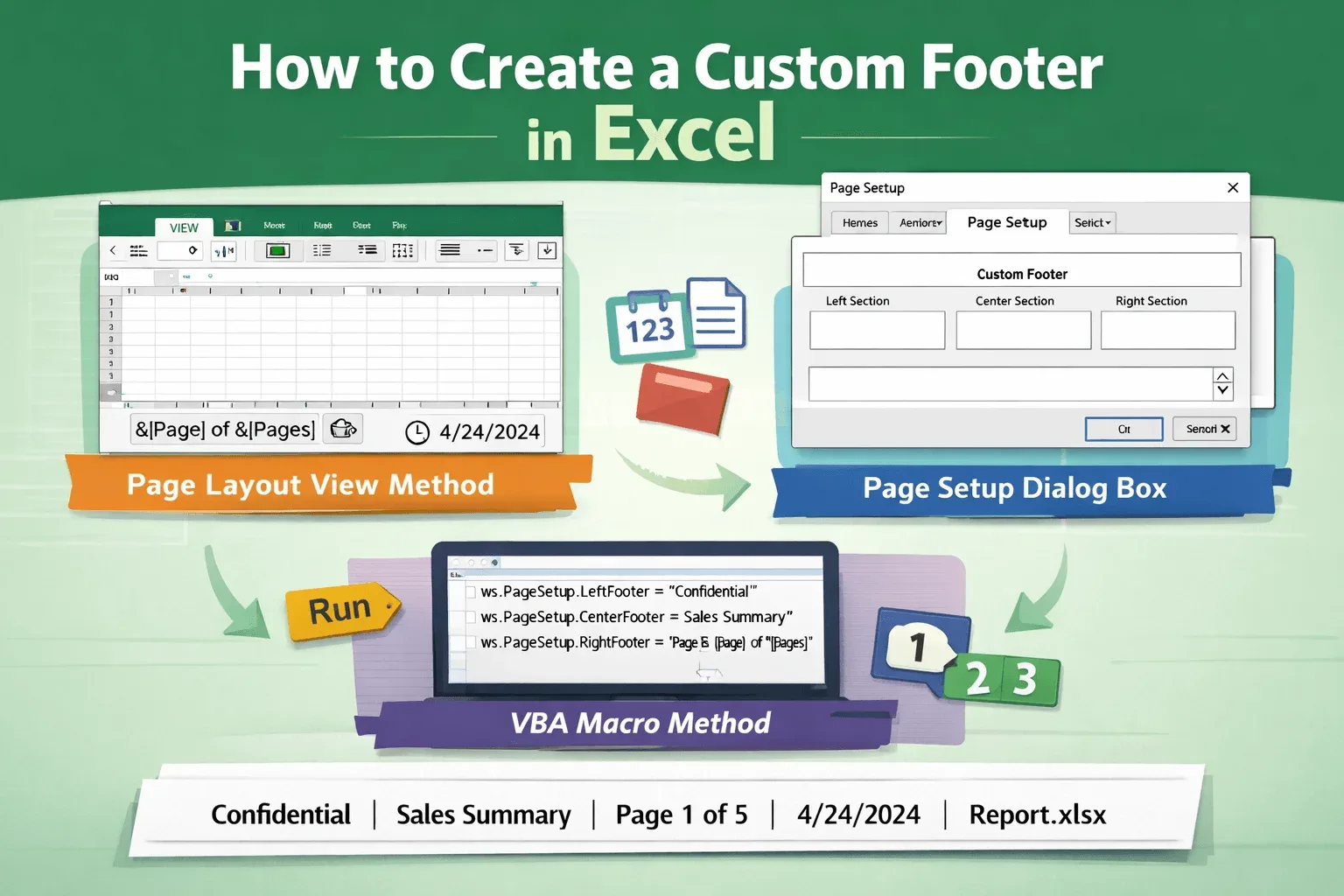
Learn how to create a custom footer in Excel by using Page Layout view, customizing via Page Setup, or adding one with a VBA macro.
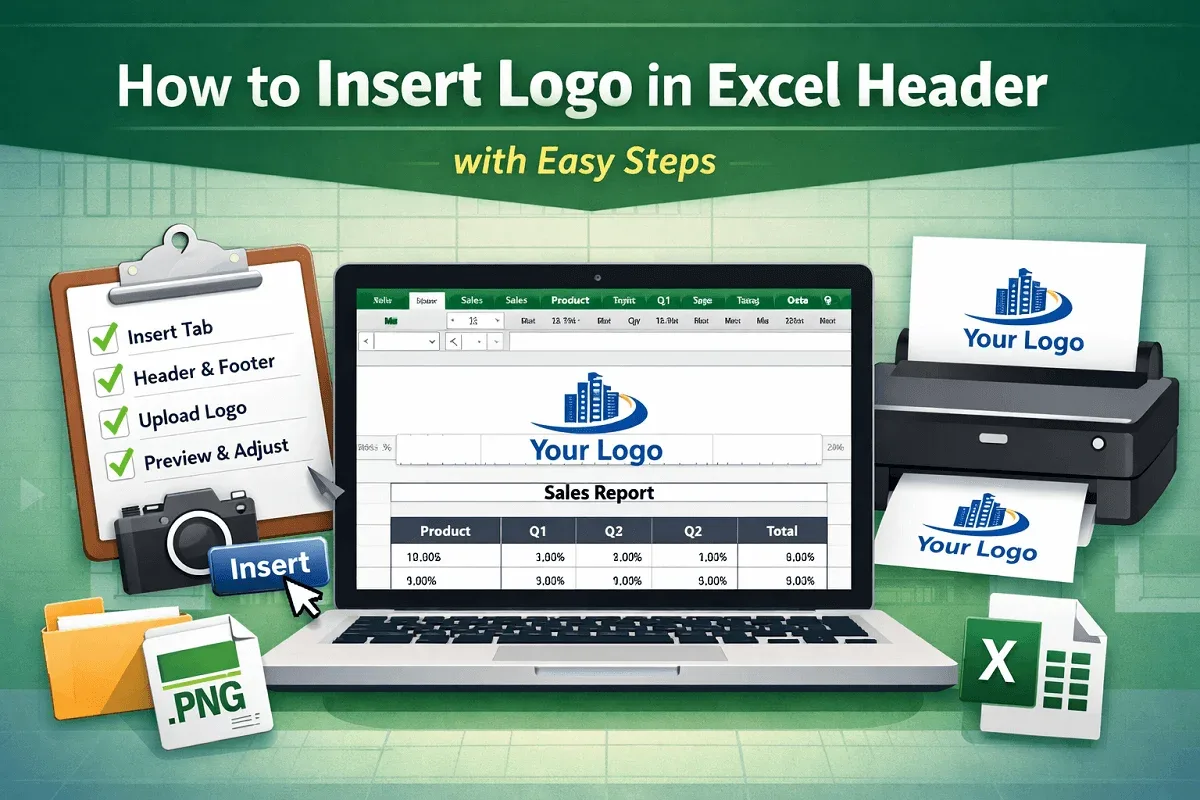
Add a logo to an Excel header by opening Header & Footer view, selecting a section, inserting the image, confirming it, adjusting the size.
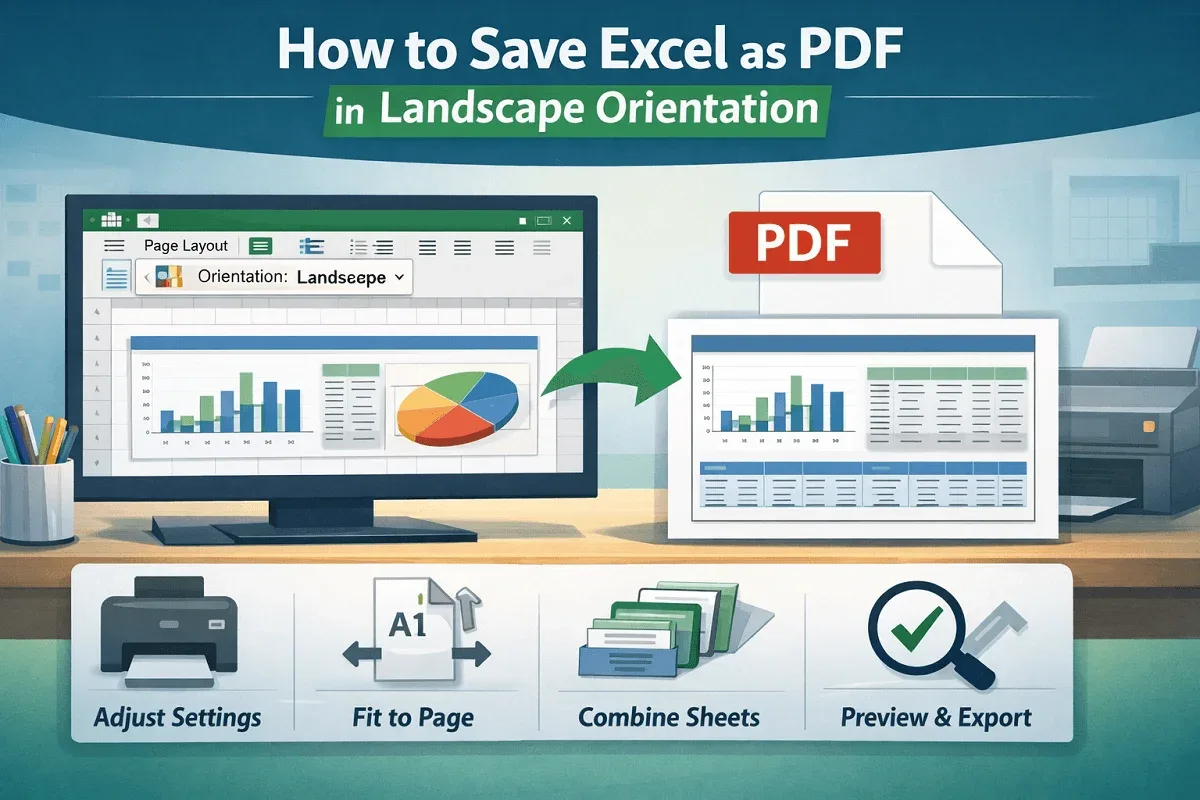
Save Excel as a landscape PDF by adjusting page layout, defining print area, configuring sheet options, and exporting from print preview.