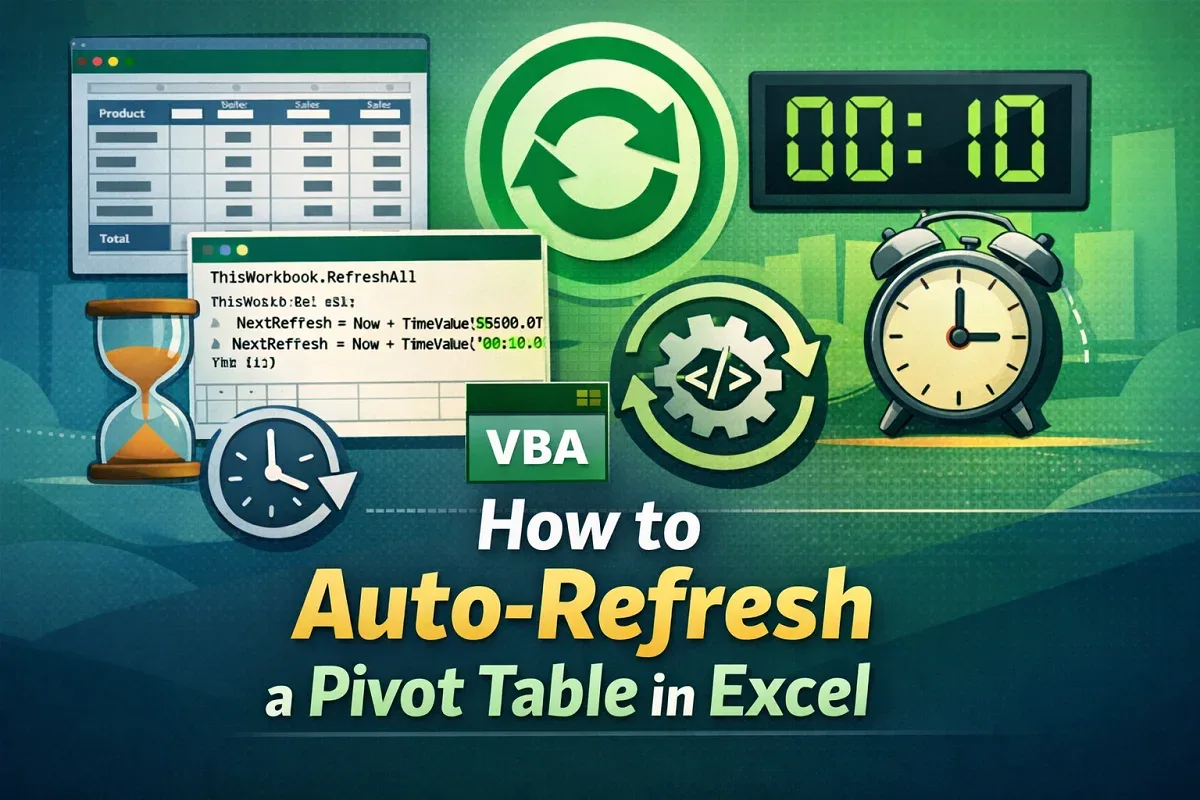
Excel Pivot Table
How to Auto-Refresh a Pivot Table in Excel
Learn how to auto-refresh Pivot Tables in Excel using VBA, on file open, or at set time intervals for real-time data updates.
Read article

1285 articles
Learn how to auto-refresh Pivot Tables in Excel using VBA, on file open, or at set time intervals for real-time data updates.
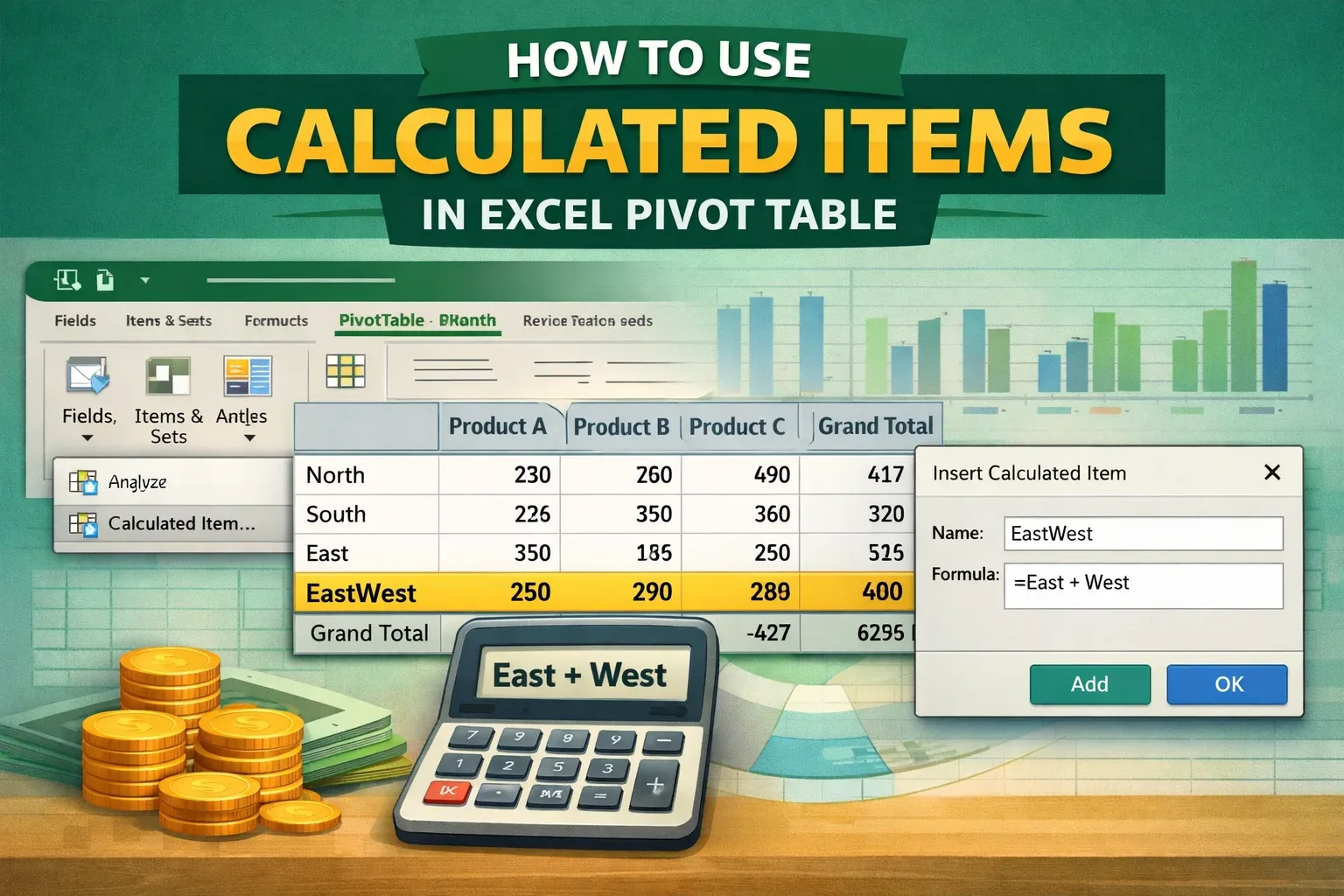
Learn how to add and use calculated items in Excel PivotTables with step-by-step instructions for accurate data analysis.

Learn how to use the COUNTIF function in a Pivot Table in Excel with calculated fields to efficiently analyze and summarize data.
Learn how to refresh all Pivot Tables in Excel using the built-in Refresh All option or VBA for quick and efficient data updates.

Learn how to insert a slicer in Excel without using a Pivot Table by converting your dataset into a table and adding slicer fields easily.
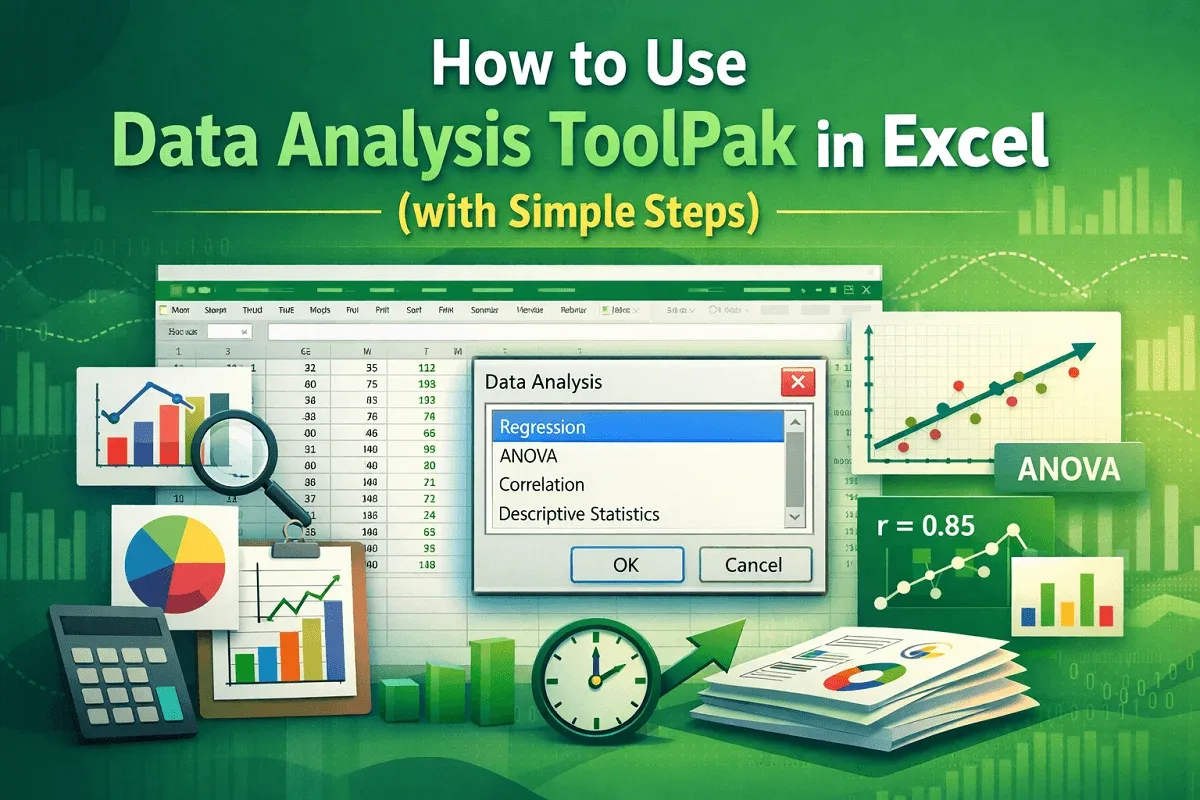
Learn how to enable and use Excel’s Data Analysis ToolPak to perform quick, accurate statistical and data analysis tasks easily.
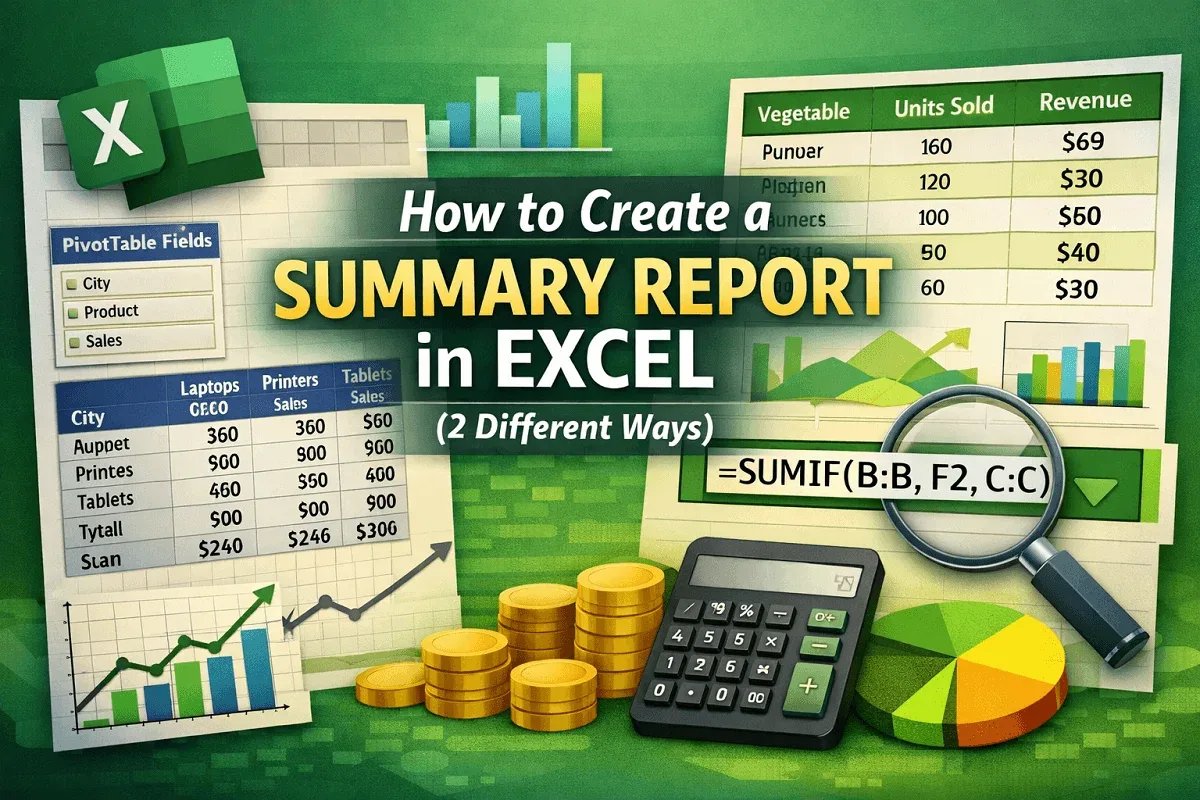
Learn how to create a summary report in Excel using PivotTables, SUMIF functions, and Advanced Filters for efficient data analysis.
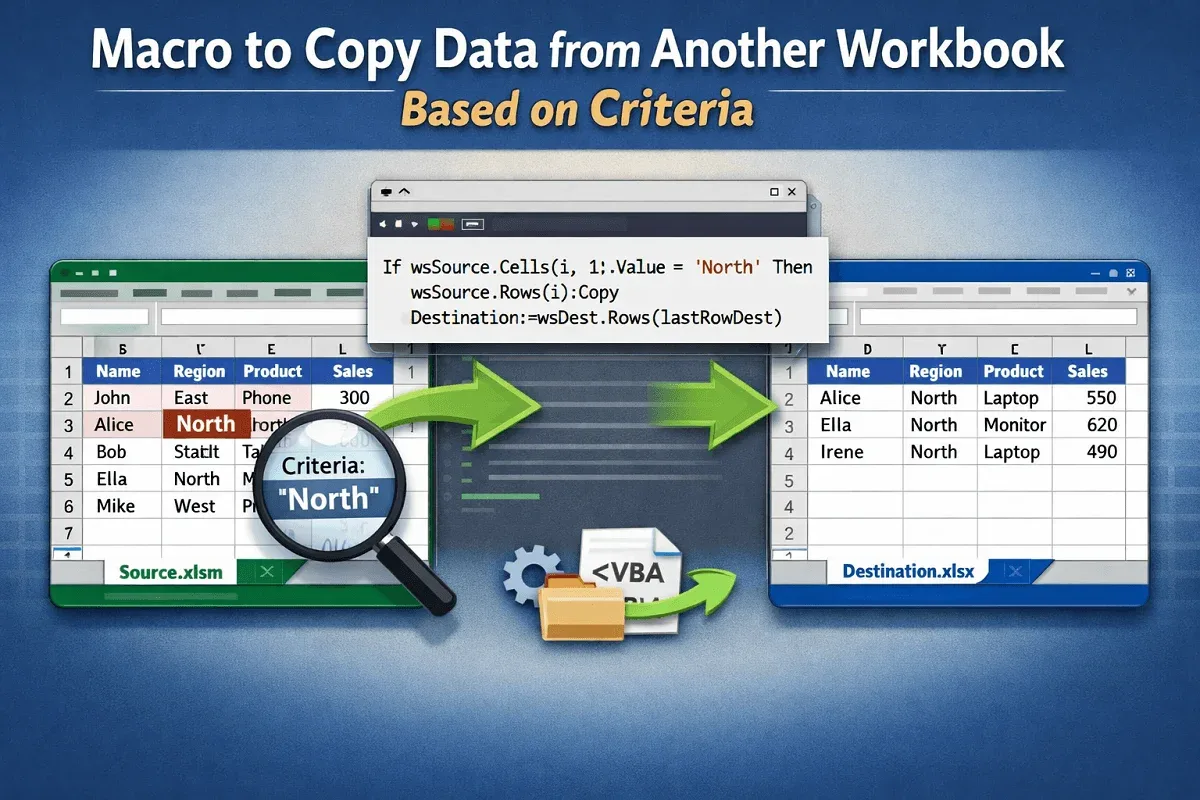
Learn how to create Excel macros to copy data between workbooks based on single or multiple criteria using advanced filters.
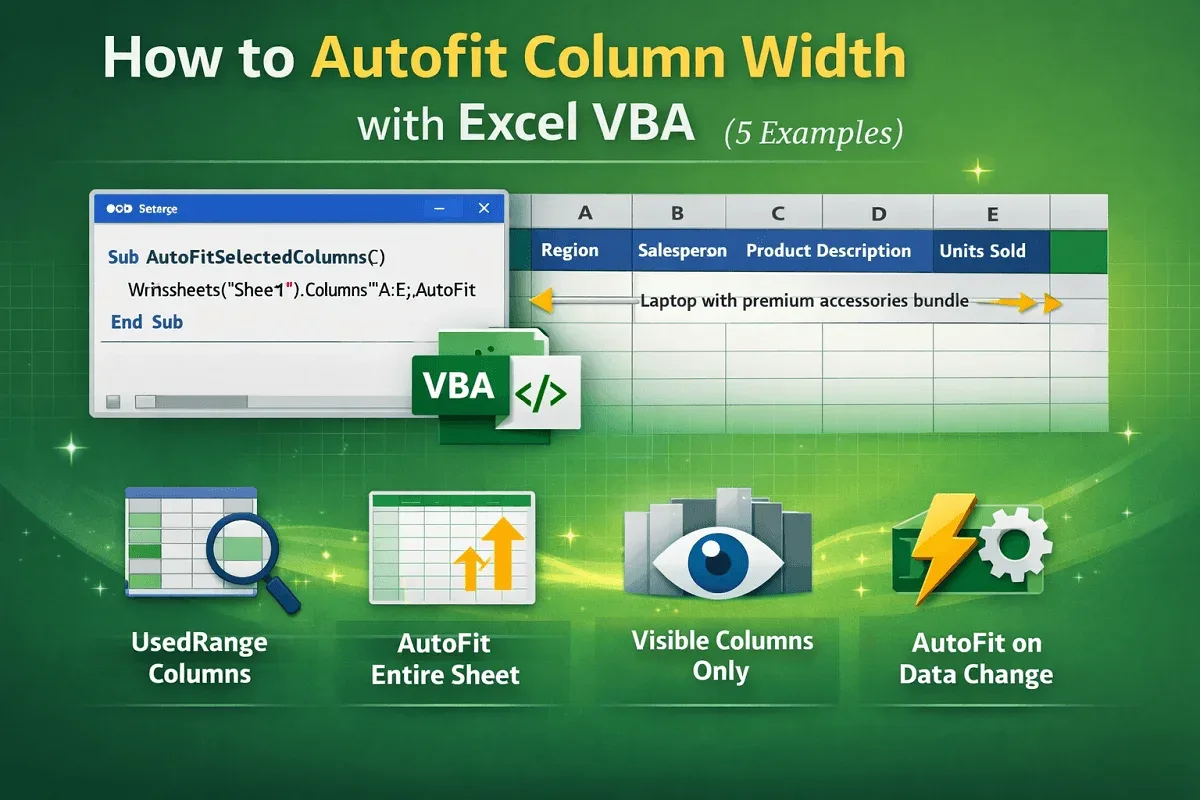
Learn how to autofit column width in Excel using VBA—covering Range.AutoFit, UsedRange, visible cells, and automatic event-based fitting.
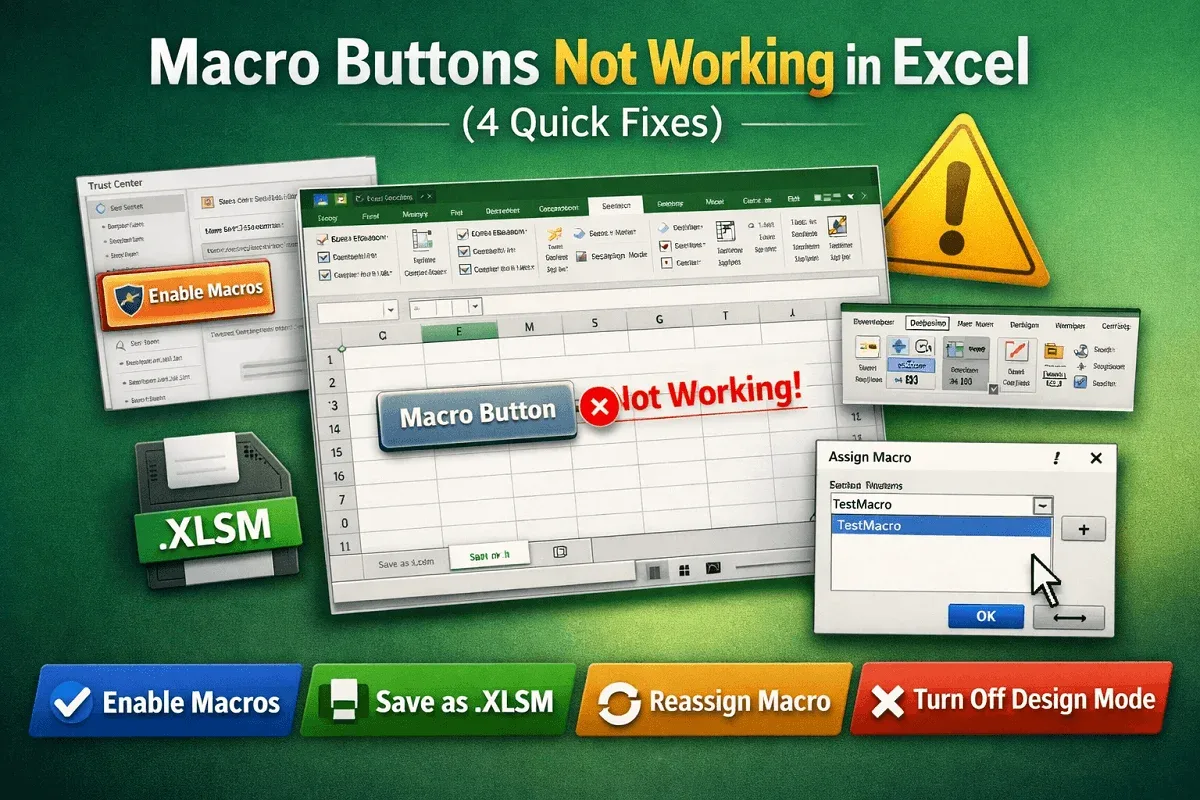
Fix Excel macro buttons not working with these 4 quick solutions: enable macros, save as .xlsm, reassign, and disable design mode.
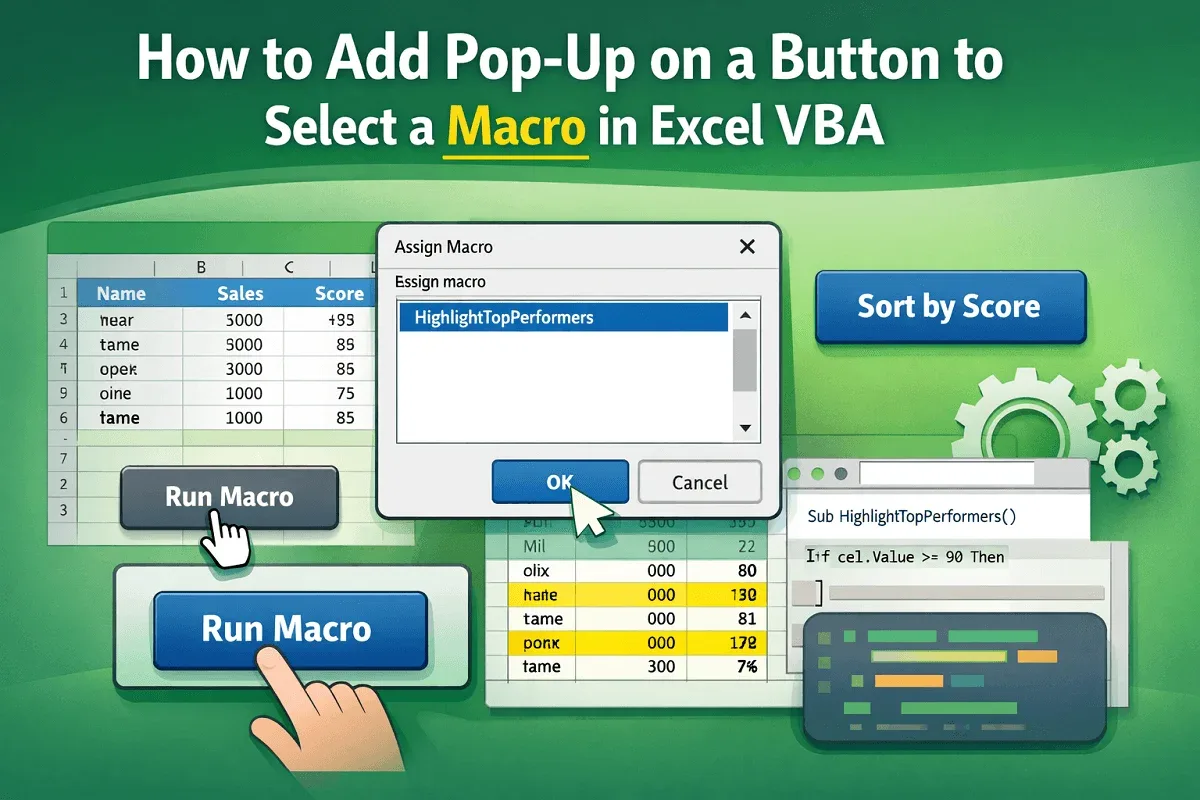
Learn how to add a pop-up on a button in Excel VBA to select and assign macros using Form Controls or Shapes effectively.
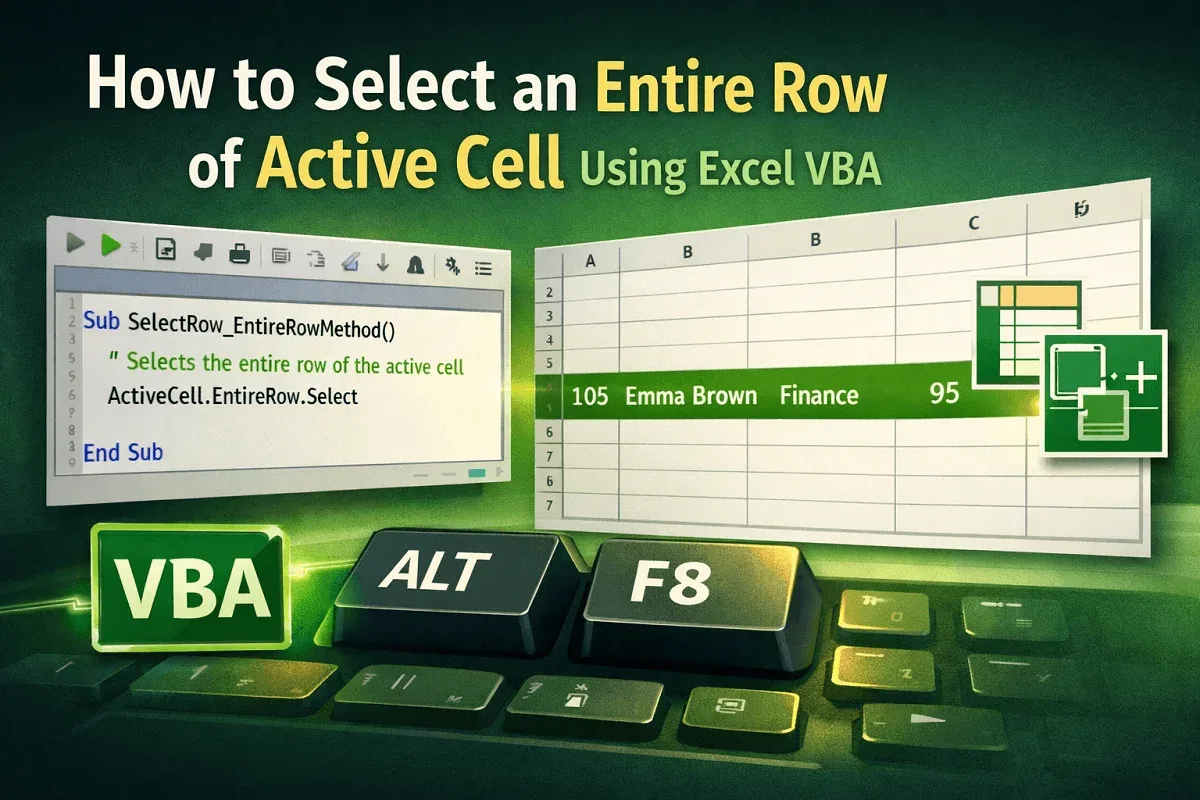
Learn how to select the entire row of the active cell in Excel VBA using ActiveCell.EntireRow, Rows, and the Union method.